





Accessing your Safari browsing history on iPhone is a common task that helps you quickly revisit websites you’ve recently visited. Whether you’re trying to find a page you forgot to bookmark or want to review your browsing activity, knowing how to access your history is essential. This guide covers all iOS versions, including the latest iOS 26.
Quick Steps to View Safari History
- Open Safari on your iPhone
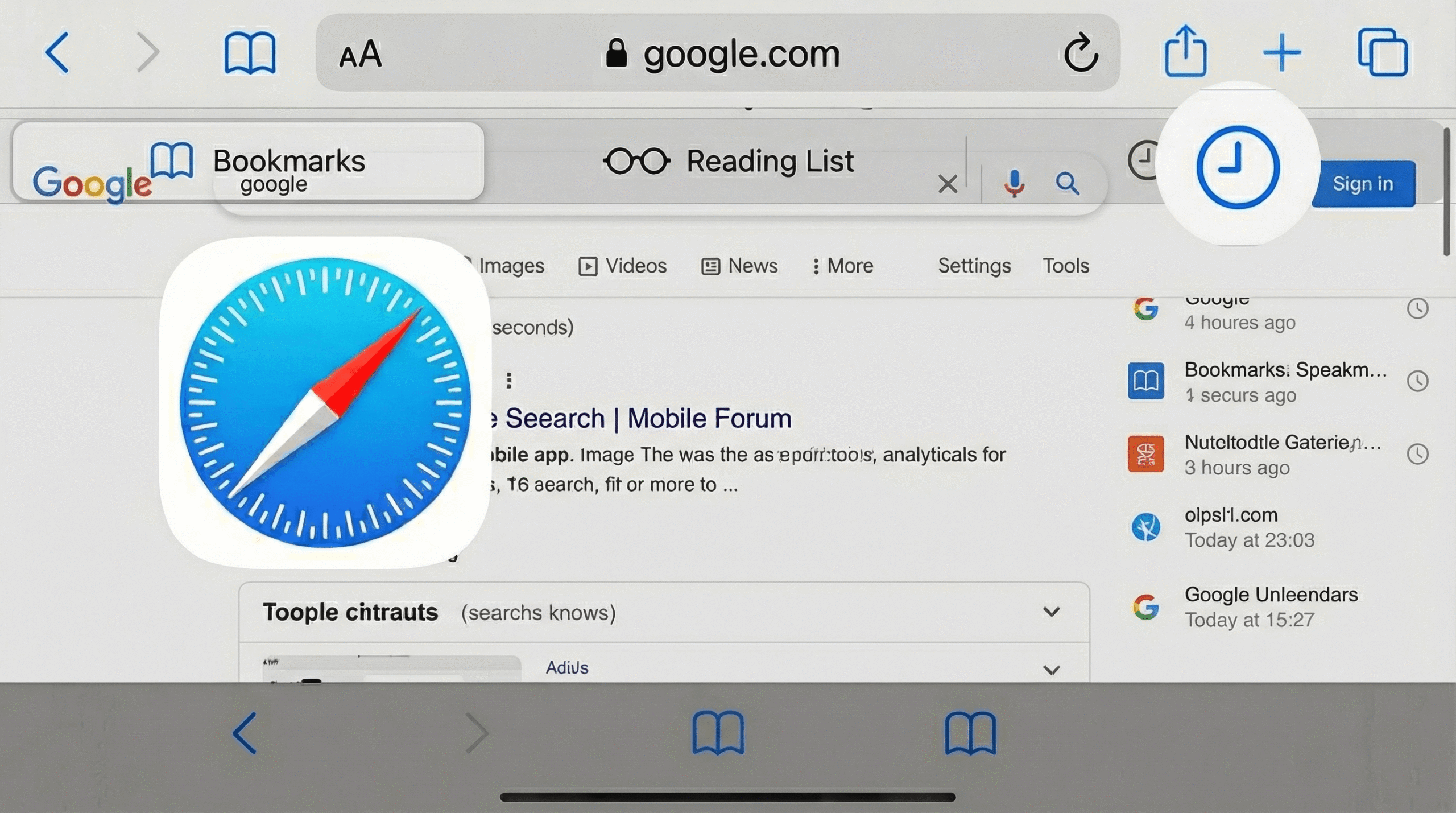
- Tap the Bookmarks icon (looks like an open book) at the bottom
- Tap the History tab (clock icon)
- Browse your history or use the search bar to find specific sites
Detailed Instructions for Different iOS Versions
iOS 18 and Earlier:
Step 1: Launch the Safari app on your iPhone. You’ll see the address bar at the top and the toolbar at the bottom of the screen.
Step 2: Look at the bottom toolbar and locate the Bookmarks icon, which resembles an open book. Tap this icon to open the Bookmarks panel.
Step 3: In the Bookmarks panel, you’ll see several tabs at the top. Look for the History tab, which displays a clock icon. Tap this tab to view your browsing history.
Step 4: Your history will be organized by date, showing “Today,” “Yesterday,” and earlier dates. Scroll through the list to find the website you’re looking for.
iOS 26 (Latest Version):
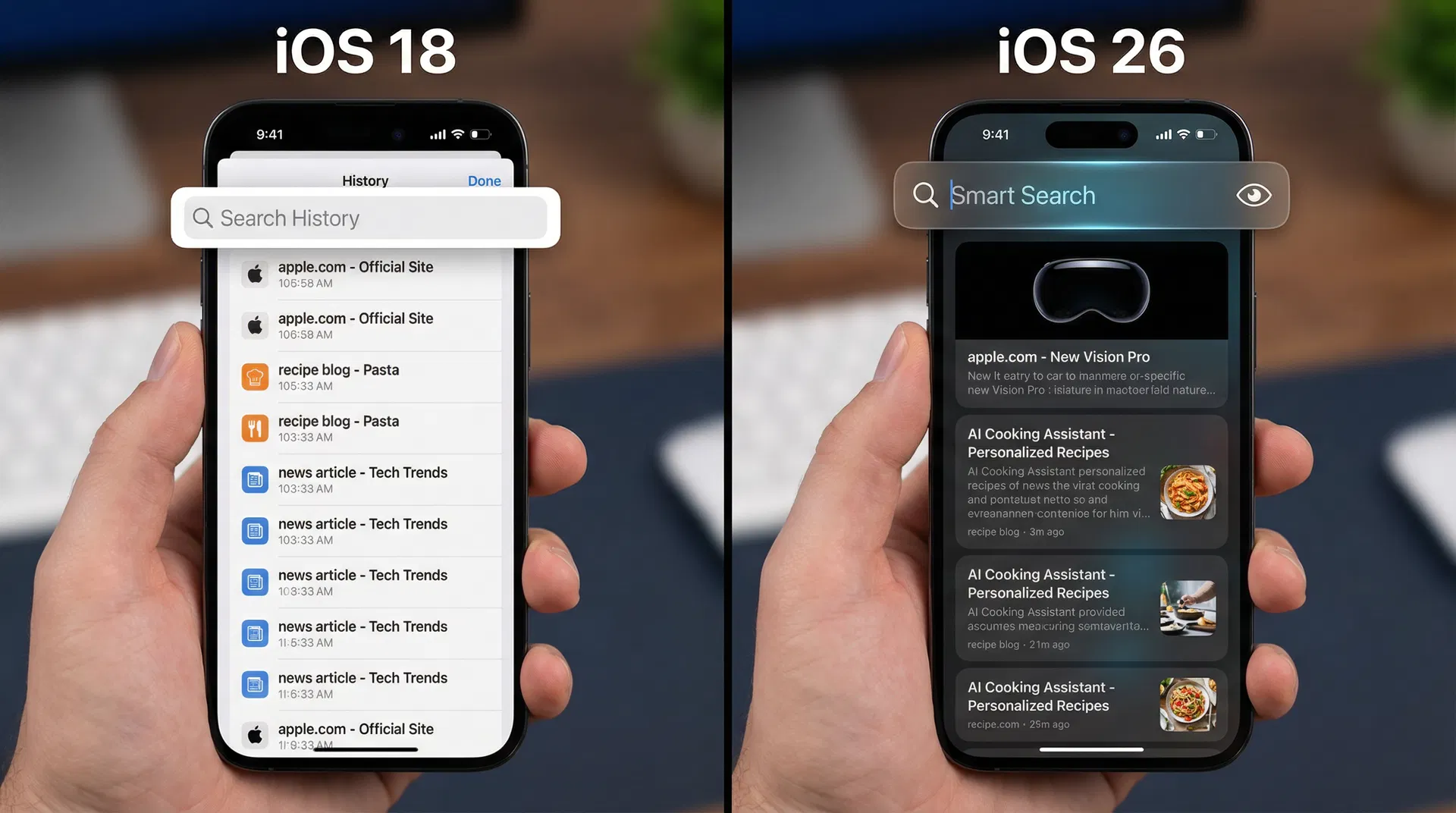
iOS 26 introduced a redesigned Safari interface with some changes to how you access history. Here’s the updated process:
Step 1: Open Safari and look at the bottom toolbar. The interface remains similar to previous versions.
Step 2: Tap the Bookmarks icon (book icon) at the bottom of the screen.
Step 3: In the updated Bookmarks panel, tap the History tab (clock icon) on the right side.
Step 4: You’ll see your browsing history organized by date. The interface now includes a search feature at the top for quickly finding specific websites.
Searching Your History
If you remember part of the website name or URL, you can search your history instead of scrolling through the entire list.
Step 1: Open Safari and tap the Bookmarks icon
Step 2: Tap the History tab (clock icon)
Step 3: Tap the search bar at the top of the History panel
Step 4: Type the website name or part of the URL
Step 5: Matching results will appear below the search bar
Clearing Your History
If you want to delete your browsing history for privacy reasons:
Step 1: Open Settings on your iPhone
Step 2: Scroll down and tap Safari
Step 3: Tap “Clear History and Website Data”
Step 4: Choose the time range: “the last hour,” “today,” “today and yesterday,” or “all time”
Step 5: Tap “Clear History and Website Data” to confirm
Using Private Browsing Mode
Private Browsing mode prevents Safari from saving your browsing history:
Step 1: Open Safari
Step 2: Tap the Tabs icon (overlapping squares) at the bottom right
Step 3: Tap “Private” at the bottom left
Step 4: Tap the “+” icon to open a new private tab
Step 5: Browse normally; these sites won’t appear in your history
Accessing History from Other Browsers
If you use Chrome or Firefox on your iPhone, the process is slightly different:
Chrome History:
1. Open Chrome
2. Tap the three-dot menu at the bottom right
3. Tap “History”
4. Browse or search your history
Firefox History:
1. Open Firefox
2. Tap the menu icon (three horizontal lines)
3. Tap “History”
4. View your browsing history
Frequently Asked Questions
Q: How far back does iPhone Safari history go?
A: Safari typically stores history for up to 30 days by default. You can adjust this in Settings under Safari.
Q: Can I recover deleted history?
A: Once cleared, history cannot be recovered from Safari. However, if you use iCloud, you may be able to recover it from your iCloud backup.
Q: Why can’t I find a website in my history?
A: The site may have been cleared, or you may have browsed it in Private mode. Check if you have multiple Safari windows open.
Q: How do I sync history across devices?
A: Enable iCloud sync in Settings > [Your Name] > iCloud > Safari to sync history across all your Apple devices.
Q: Can I export my Safari history?
A: Safari doesn’t have a built-in export feature, but you can use third-party apps or Mac’s Safari to export history.
Privacy Considerations
Regularly clearing your history helps protect your privacy. Consider clearing history when sharing your iPhone with others or before selling or giving away your device. Use Private Browsing mode for sensitive searches that you don’t want recorded.
Conclusion
Accessing your Safari browsing history on iPhone is straightforward and takes just a few taps. Whether you’re using iOS 18 or the latest iOS 26, the process remains intuitive and user-friendly. By understanding how to view, search, and clear your history, you can better manage your browsing activity and maintain your privacy on your iPhone.
Related Articles: