





Your iPhone’s vibration settings can be customized to suit your preferences and needs. Whether you want to adjust the intensity of vibrations, create custom patterns for specific contacts, or disable vibrations entirely, this comprehensive guide will walk you through all available options.
Quick Steps to Change Vibration Settings
- Open Settings on your iPhone
- Tap “Sounds & Haptics”
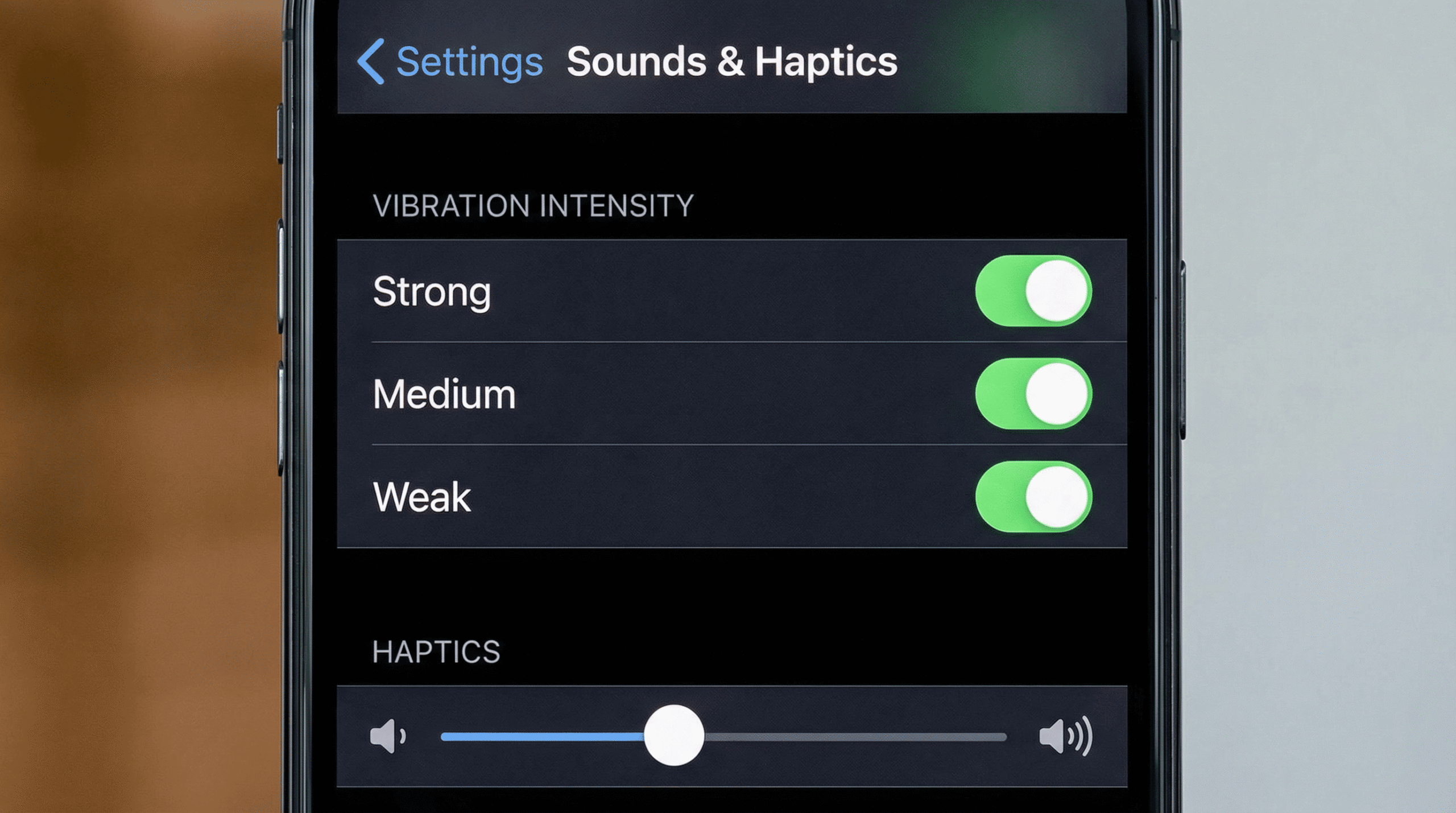
- Tap “Haptics” to adjust the intensity
- Choose your preferred vibration level: Strong, Medium, or Weak
Detailed Vibration Settings Guide
Accessing Sounds & Haptics:
Step 1: Open the Settings app on your home screen
Step 2: Scroll down and tap “Sounds & Haptics”
Step 3: You’ll see several options including Ringtone, Text Tone, and Haptics
Adjusting Vibration Intensity:
Under the Haptics section, you’ll find three vibration intensity options:
- Strong: Maximum vibration intensity for maximum notification awareness
- Medium: Balanced vibration intensity (default setting)
- Weak: Subtle vibrations for discreet notifications
Select your preferred intensity level. The change takes effect immediately.
Disabling Vibration:
To turn off vibrations completely:
Step 1: Go to Settings > Sounds & Haptics
Step 2: Toggle off “Vibration” switch
Step 3: Your iPhone will no longer vibrate for notifications
Creating Custom Vibration Patterns
iPhone allows you to create unique vibration patterns for specific notifications:
Step 1: Go to Settings > Sounds & Haptics
Step 2: Tap on the notification type (Ringtone, Text Tone, etc.)
Step 3: Scroll to the bottom and tap “Create New Vibration”
Step 4: Tap on the screen to create your pattern (short taps for short vibrations, longer taps for longer vibrations)
Step 5: Tap “Stop” when finished
Step 6: Tap “Save” and name your custom vibration pattern
Assigning Vibrations to Contacts
You can assign unique vibration patterns to specific contacts:
Step 1: Open the Contacts app
Step 2: Select a contact
Step 3: Tap “Edit”
Step 4: Scroll down and tap “Vibration”
Step 5: Choose a pre-set vibration pattern or your custom pattern
Step 6: Tap “Done” to save
Silent Mode and Vibration Behavior
When your iPhone is in Silent Mode (using the physical switch on the side):
- Ringtone vibrations will still occur
- Notification vibrations will still occur
- Alarm vibrations will still occur
- You can disable vibration in Silent Mode by toggling off the vibration switch in Settings
Accessibility Features for Vibration
iPhone includes accessibility options for users who benefit from enhanced vibration feedback:
Haptic Strength:
Go to Settings > Accessibility > Touch > Haptic Strength to adjust the overall haptic feedback intensity across all apps.
Vibration Patterns:
Users with hearing impairments can use vibration patterns to receive notifications instead of sounds.
Troubleshooting Vibration Issues
iPhone Not Vibrating:
- Check if Silent Mode is enabled
- Verify vibration is enabled in Settings > Sounds & Haptics
- Check individual app notification settings
- Restart your iPhone
- Update to the latest iOS version
Vibration Too Weak:
- Increase vibration intensity in Settings > Sounds & Haptics
- Check if Haptic Strength is set to maximum
- Clean the vibration motor area (no liquid)
Vibration Not Working for Specific Contacts:
- Verify the contact has a vibration pattern assigned
- Check if notifications are enabled for that contact
- Restart the Contacts app
Frequently Asked Questions
Q: Can I have different vibration patterns for calls and messages?
A: Yes, you can assign different vibration patterns to Ringtone (calls) and Text Tone (messages) separately.
Q: Will custom vibrations work with third-party apps?
A: Custom vibrations work with native iPhone apps. Third-party apps may have their own vibration settings.
Q: How do I know which vibration pattern is assigned to which contact?
A: Open the contact, tap Edit, and scroll to the Vibration field to see the assigned pattern.
Q: Can I share custom vibration patterns with others?
A: Unfortunately, custom vibrations cannot be directly shared, but you can describe the pattern to others.
Q: Does vibration use battery?
A: Vibration uses minimal battery compared to sound and screen, so enabling vibration won’t significantly impact battery life.
Best Practices for Vibration Settings
- Professional Settings: Use Medium or Weak vibration in professional environments
- Sleep Mode: Disable vibration or use Silent Mode at night
- Accessibility: Use strong vibration if you have hearing impairments
- Contact Identification: Assign unique patterns to important contacts for quick identification
- Battery Optimization: Disable unnecessary vibrations to extend battery life
Conclusion
Customizing your iPhone’s vibration settings allows you to personalize your notification experience. Whether you prefer strong vibrations for maximum awareness or subtle haptic feedback for discretion, iPhone’s flexible vibration options accommodate all preferences. By following this guide, you can optimize your vibration settings for your specific lifestyle and needs.
Related Articles: