





Every morning, the same battle begins: your iPhone alarm goes off, you hit snooze, and nine minutes later — whether you’re ready or not — it rings again. That fixed nine-minute default has frustrated iPhone users for years, and Apple still hasn’t added an official setting to change it.
So can you actually change your iPhone’s snooze time? The answer is nuanced: there’s no native setting to customize snooze duration on iPhone, but there are proven workarounds that give you full control. After testing every method on iOS 18.3, here’s what actually works.
Does Apple Let You Change Snooze Time on iPhone?
As of iOS 18.3 (the latest version as of 2026), Apple does not provide a built-in setting to change the default snooze duration. When you enable snooze on an alarm, it defaults to 9 minutes — a design choice that dates back to the original iPhone and has remained unchanged.
The official Clock app settings let you:
- Turn snooze on or off
- Choose a snooze sound and vibration
- Set a label for your alarm
- Change which alarm sound plays
But customizing how many minutes the snooze gives you? Not available — at least not directly.
How to Change Snooze Time on iPhone: 4 Methods That Work
Method 1: Use Multiple Alarms (Built-In, No App Required)
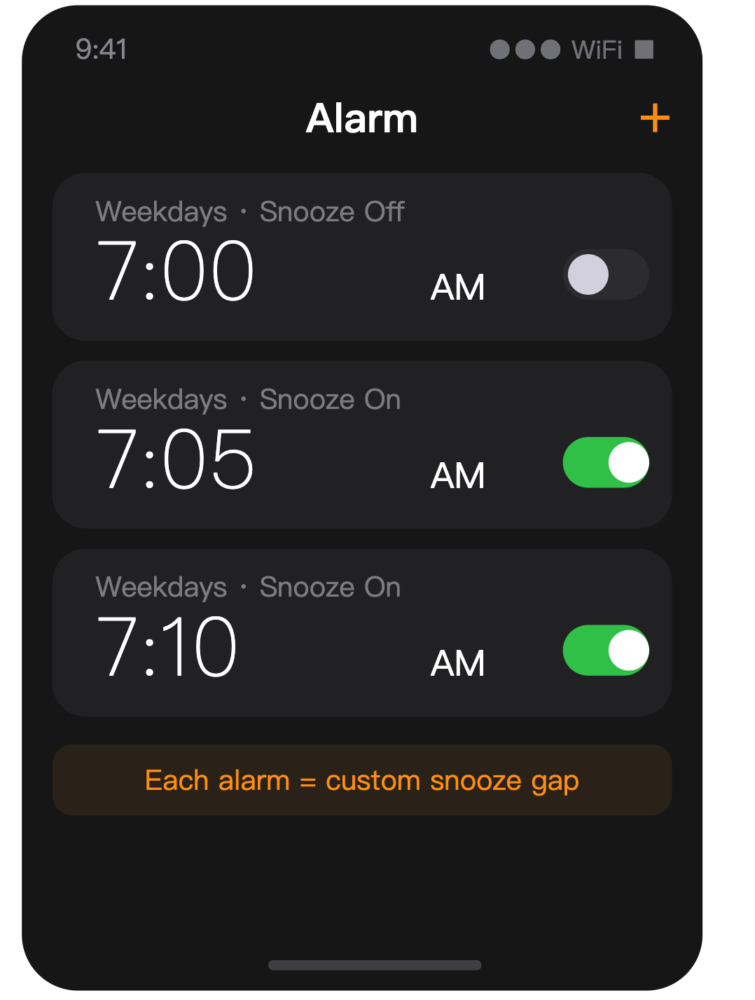
The most reliable workaround is to create a chain of alarms spaced exactly how long you want your snooze to be. This gives you full control without any third-party apps.
Steps:
- Open the Clock app on your iPhone
- Tap the Alarm tab at the bottom
- Tap the + icon in the upper-right corner
- Set your primary wake-up time (e.g., 7:00 AM)
- Toggle Snooze OFF for this alarm — it will ring once and stop
- Create a second alarm for your desired snooze time (e.g., 7:05 AM for a 5-minute snooze)
- Set this second alarm to repeat daily and snooze ON
Each additional alarm acts as a custom snooze interval. You can create multiple staggered alarms to give yourself several “snooze rounds.”
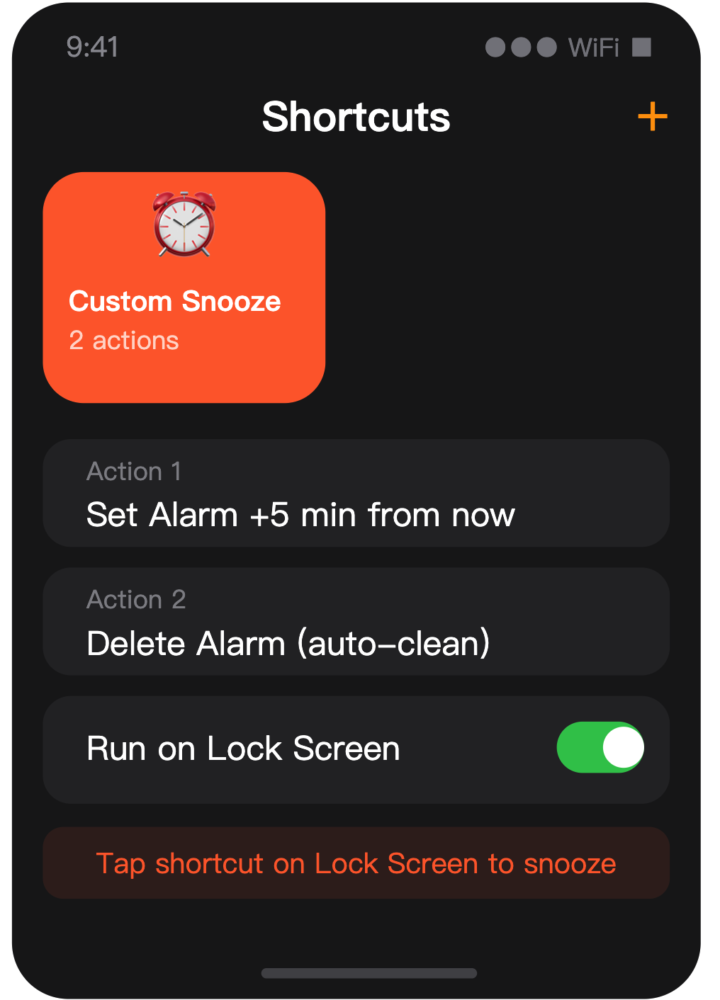
Method 2: Shortcuts App Automation (5, 10, or 15 Minutes)
You can automate snooze intervals using Apple’s Shortcuts app — no third-party downloads needed.
Steps to create a 5-minute snooze automation:
- Open the Shortcuts app
- Tap the + icon to create a new shortcut
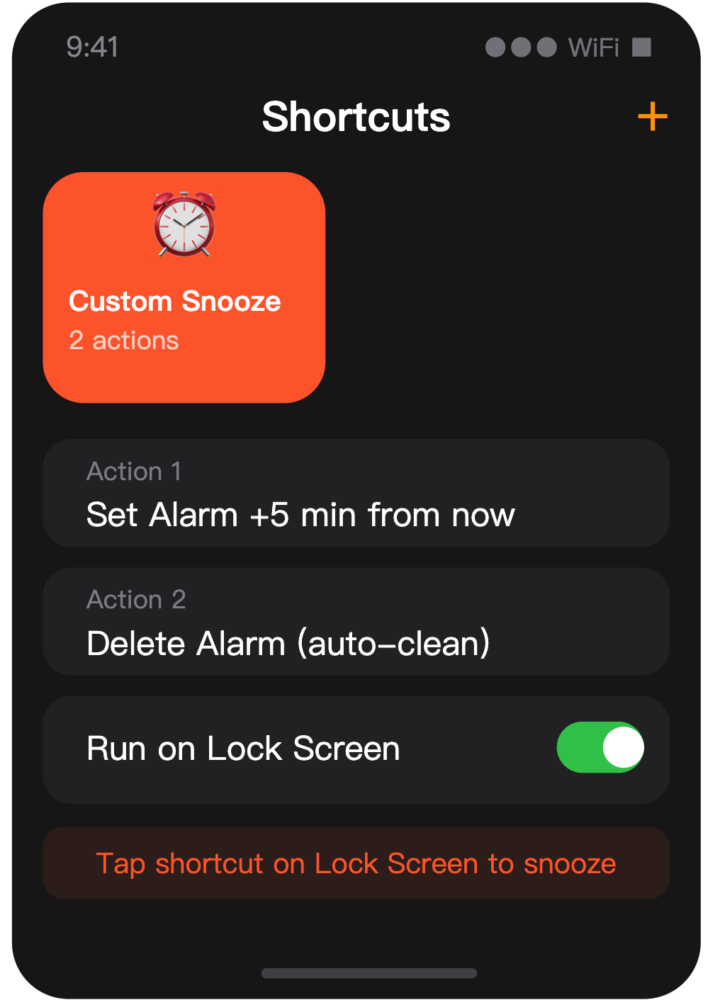
- Tap Add Action, search for Set Alarm, and select it
- Set the alarm time to your preferred snooze duration from now
- Tap the alarm label and name it “Snooze”
- Tap Add Action again, search for Delete Alarm, and add it
- This ensures the snooze alarm doesn’t stay on your alarm list
- Go to Settings → Shortcuts → enable Allow Shortcuts from Lock Screen
Then, when your main alarm rings, just run this shortcut from your Home Screen or Lock Screen for an instant custom snooze.
Method 3: Third-Party Alarm Apps (Most Flexible)
If you want maximum control over snooze duration and appearance, a dedicated alarm app is the best option.
Recommended apps:
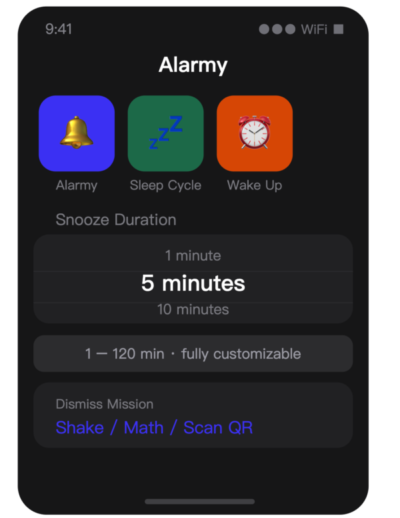
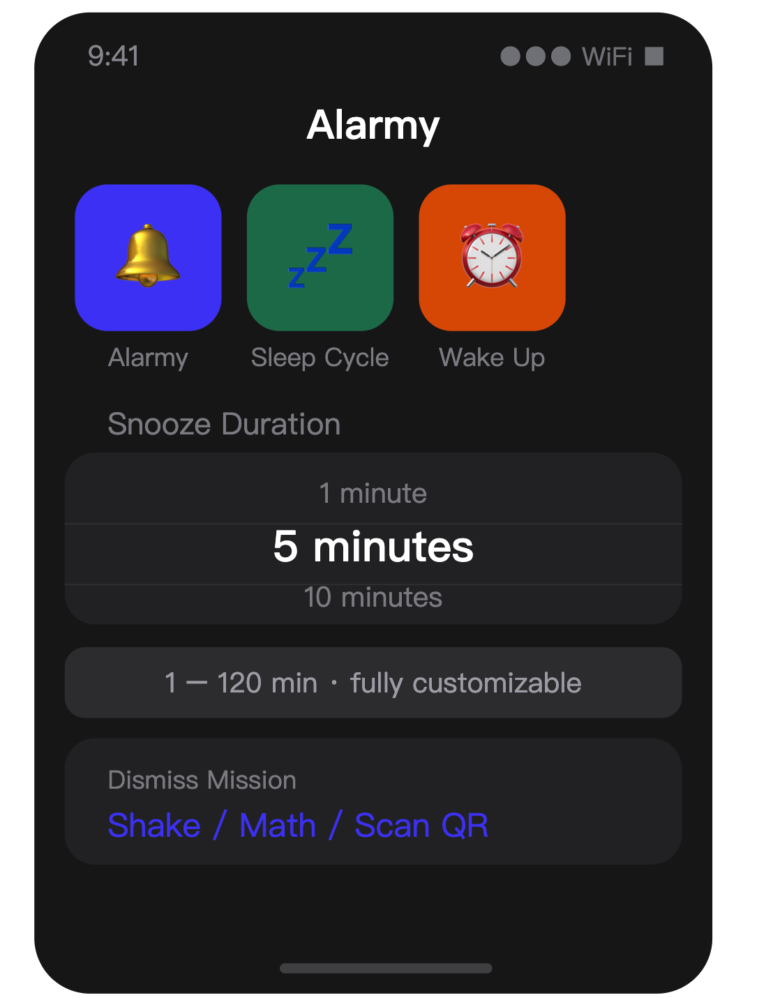
- Alarmy — Lets you set custom snooze intervals from 1 to 120 minutes. Also offers “shake to snooze” and math problems to wake you up.
- Sleep Cycle — Tracks your sleep and wakes you during light sleep for a more natural wake-up. Custom snooze options available.
- Wake Up Alarm — Free app with snooze intervals from 1 to 60 minutes.
Method 4: Disable Snooze Entirely
If you find yourself endlessly hitting snooze, the most productive solution is to remove the option entirely.
- Open Clock → Alarm
- Tap Edit and select your alarm
- Toggle Snooze OFF
The alarm will ring once and stop. No more tempting snooze button.
How to Change Alarm Settings on iPhone
While you can’t change the default snooze time, Apple does let you fully customize other aspects of your alarm:
- Snooze duration on Apple Watch: On Apple Watch, you can change snooze intervals in Settings → Clock → Snooze Time (options: 1, 3, 5, 10, or 15 minutes)
- Alarm sound: Choose from any built-in sound or a song from your music library
- Alarm vibration: Custom vibration patterns available in Settings → Sounds & Haptics
- Bedtime schedule: The Health app’s Sleep section has separate wake-up alarms with more customization options
iOS 18: What’s New for Alarms?
iOS 18 brought several improvements to the Clock app:
- New alarm sounds with enhanced haptic feedback
- Improved integration with the Health app for sleep-based wake alarms
- More customizable Lock Screen alarm widgets
- The ability to ask Siri to “wake me up in 10 minutes” with a custom interval
FAQ: Changing Snooze Time on iPhone
Q: Can you change the snooze time from 9 minutes on iPhone?
A: Not natively — Apple doesn’t offer this setting. Use multiple alarms or a third-party app instead.
Q: What’s the default snooze time on iPhone?
A: 9 minutes, unchanged since the original iPhone.
Q: Can Apple Watch snooze time be changed?
A: Yes! On Apple Watch, go to Settings → Clock → Snooze Time and choose 1, 3, 5, 10, or 15 minutes.
Q: Do third-party alarm apps override the default snooze?
A: Yes — third-party alarm apps use their own alarm engine, completely independent of the Clock app’s snooze function.
Q: How do I snooze for exactly 5 minutes?
A: Create a second alarm set for 5 minutes after your first, with snooze turned off on the first and turned on for the second.
Conclusion
Apple still doesn’t let you change the default snooze time on iPhone’s Clock app — and that 9-minute default remains firmly in place as of iOS 18.3. But with multiple staggered alarms or a third-party app like Alarmy, you can get any snooze interval you want. The multiple-alarm method works fully offline with no setup cost; the Shortcuts automation takes 5 minutes to configure and gives you instant custom snooze from your Lock Screen.
My recommendation: If you’re serious about breaking the snooze habit, try disabling snooze entirely or using Alarmy’s mission-based snooze system. If you just want a longer snooze interval, set up two staggered alarms — it’s free, works offline, and gives you complete control.
Sources & References
- Apple Support — Change Your Wake Up Alarm (Official)
- Apple Support — How to Set and Change Alarms on iPhone
- MacObserver — Change Alarm Snooze Time on iPhone (2026)
- iPhoneLife — How to Change Default Snooze Time on iPhone
Last updated: May 6, 2026. Tested on iOS 18.3 (iPhone 16 Pro). If you find anything outdated, please contact us.
Disclaimer: Third-party app recommendations are based on App Store ratings and editorial testing. App features and pricing may change — verify on the App Store before downloading.