





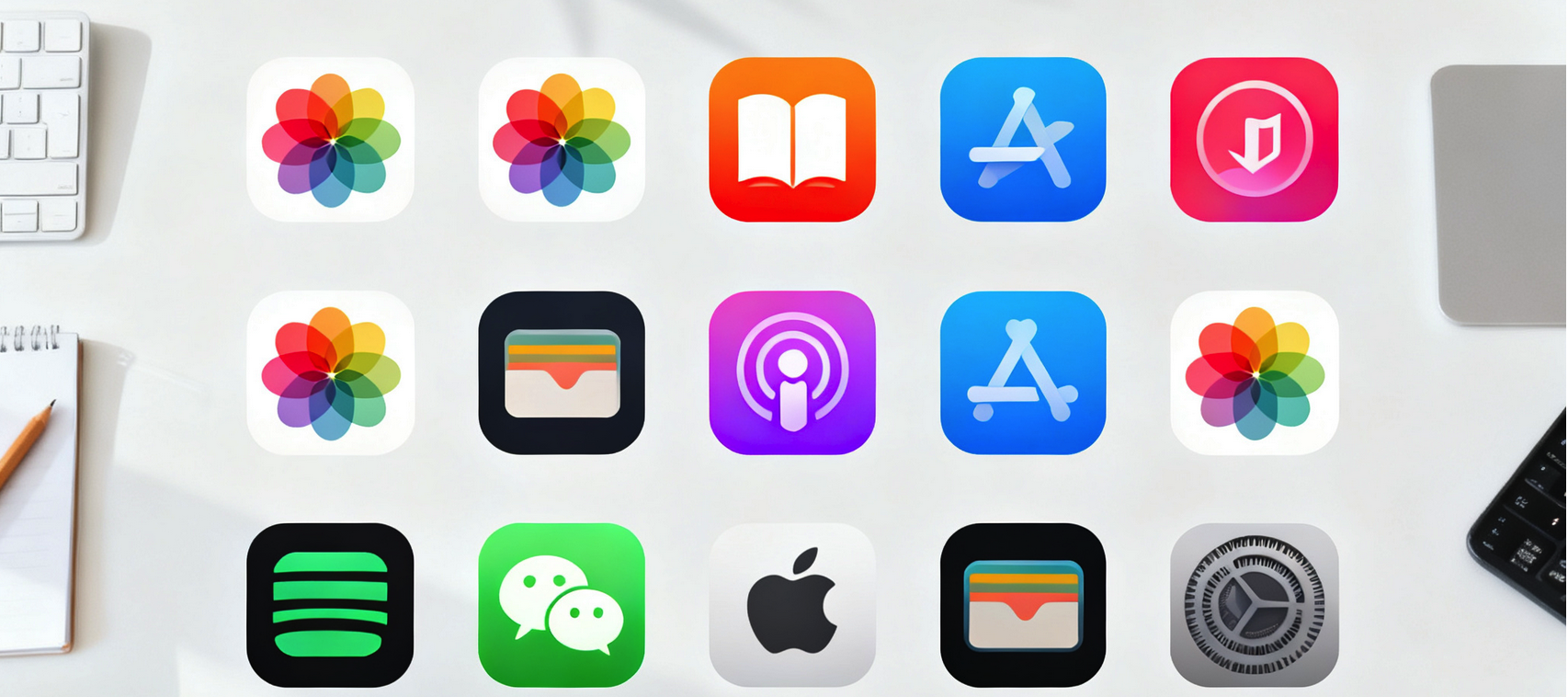
One of the most exciting additions in iOS 18 is the ability to fully customize your iPhone’s app icons — not just rearrange them, but actually change their look, color, and style. Whether you want a clean monochrome home screen, vibrant color-coded icons, or completely custom designs, iOS 18 gives you more freedom than ever before.
In this guide, I’ve tested every method on iOS 18.3 with an iPhone 16 Pro. Here’s exactly how to change app icons on iPhone — both Apple’s official methods and the Shortcuts workaround for fully custom icons.
What’s New in iOS 18 for App Icon Customization?
iOS 18 marked the biggest leap in home screen customization since the iPhone launched:
- Tint Mode: Apply a unified color filter across all your icons simultaneously
- Darker icons: Option to make icons appear in dark mode even on a light home screen
- Larger icons: Enlarge any icon to fill more of the grid
- Shortcuts integration: Native support for custom icon images via the Shortcuts app
- Home screen widgets: Mix app icons with redesigned widgets seamlessly
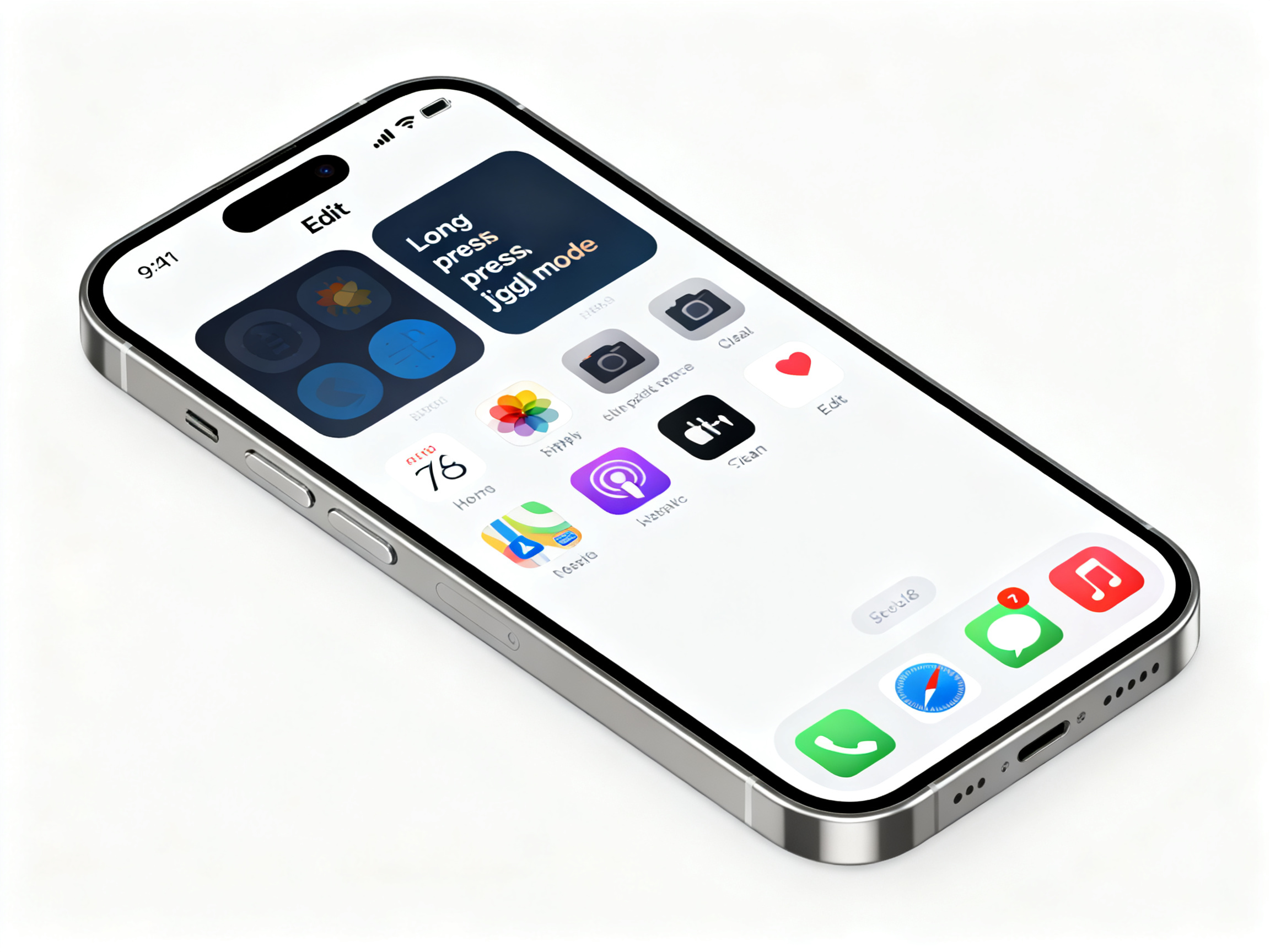
Method 1: Customize Icons Directly (No App Required — iOS 18)
Apple built app icon customization directly into iOS 18. This is the easiest way to change icon appearance.
Steps:
- Press and hold an empty area on your Home Screen until the icons start jiggling
- Tap Edit at the top of the screen
- Tap Customize
- You’ll see three options: Light, Dark, and Tinted
- Light: Shows icons in their standard bright appearance
- Dark: Converts all icons to a dark appearance — great for dark-mode-only home screens
- Tinted: Applies a color filter across all icons. Use the tint slider to adjust intensity, or tap a preset color (blue, purple, pink, red, orange, yellow, green, or natural)
Pro tip: You can combine tint mode with larger icon sizes for a completely transformed look. The tint applies a color overlay that harmonizes all your icons into a cohesive palette.
Method 2: Change Individual App Icons with Shortcuts (Custom Images)
Want to replace an app’s icon with your own photo or a completely custom design? Apple’s Shortcuts app lets you do exactly that — no third-party apps needed.
Steps to create a custom icon:
Step 1: Create the Shortcut
- Open the Shortcuts app
- Tap the + icon in the top-right corner
- Tap Add Action
- Search for and select Open App
- Tap App and choose the app you want to customize
Step 2: Add the Icon to Your Home Screen
- Tap the i (info) icon in the shortcut’s toolbar
- Tap Add to Home Screen
- Tap the icon preview (the default shortcut icon)
- Select one of these options:
- Choose Photo: Pick any image from your photo library
- Take Photo: Use your camera to create a new icon image
- Browse Images: Find an image in Files
- Rename the shortcut to exactly how you want it to appear under the icon
- Tap Add in the top-right corner
Step 3: Remove the Original App Icon
Once your custom icon shortcut is on your Home Screen, you can move the original app icon to the App Library:
- Long-press the original app icon until a menu appears
- Tap Edit Home Screen
- Drag the original icon to the App Library (swipe left past all your home screens)
Important note: The Shortcuts method creates a shortcut icon that opens the app — it doesn’t actually replace the app’s file on your iPhone. The original app remains fully functional and will still receive updates.
Method 3: Enlarge App Icons
iOS 18 lets you make any icon larger on the home screen for better visibility or visual impact.
- Long-press the Home Screen background until icons jiggle
- Tap Edit → Customize
- At the bottom of the screen, tap the grid icon
- Choose Larger to expand all icons to the maximum size
You can also enlarge individual icons using the same edit flow: long-press an icon → Edit → Customize, then tap the icon and select a size.
Method 4: Create Color-Coordinated App Icon Sets
Using the Tint feature, you can create themed icon groups — for example, making all your social media icons blue, fitness apps green, and work apps gray.
- Open Settings → Home Screen
- Under Appearance, choose Tinted
- Pick a default tint color
- Now create Shortcuts for each app group with matching custom images
How to Restore Original App Icons
Changed your mind? Here’s how to go back to default icons:
- For customized icons via Edit → Customize: Long-press Home Screen → Edit → Customize → tap Light to reset to defaults
- For Shortcuts-based custom icons: Delete the shortcut from your Home Screen. The original app icon will reappear in the App Library. Drag it back to your Home Screen.
Best Free Icon Packs for iPhone (2026)
If you want professionally designed custom icons without making them yourself:
- Icon Themes — Hundreds of curated icon packs in various styles. Uses Shortcuts integration.
- Widgetsmith — Create custom widgets and icons. Great for matching icons to your wallpaper.
- Apple’s Shortcuts Gallery — Apple hosts a gallery of community-created icon packs for popular apps.
FAQ: Changing App Icons on iPhone
Q: Does changing app icons affect app functionality?
A: No. The Shortcuts method creates a shortcut that opens the original app. All features, notifications, and updates work exactly the same.
Q: Will I still get app updates if I use a custom icon?
A: Yes. The app itself is unchanged — only its home screen icon is different.
Q: Can I change app icons without Shortcuts?
A: Yes — iOS 18’s built-in Edit → Customize → Tint and Dark modes work without Shortcuts. For fully custom images (photos or designs), Shortcuts is required.
Q: Do custom icons show notification badges?
A: Yes — if you keep the original app icon on your Home Screen (even if hidden in a folder), notification badges will appear. Shortcuts-based icons don’t show badge counts.
Q: Can I change the icon for pre-installed Apple apps like Camera or Photos?
A: You can create Shortcuts for Apple apps too. Long-press on any pre-installed app to see if a shortcut workflow is available.
Q: Does iOS 18 let me change app icons on iPad too?
A: Yes — iPadOS 18 supports the same icon customization methods as iOS 18.
Conclusion
iOS 18 transformed the iPhone home screen from a rigid grid into a genuine personalization canvas. The built-in Tint and Dark modes let you harmonize your entire home screen in seconds, while the Shortcuts-based custom icon method opens the door to fully unique designs — all without downloading any apps.
My recommendation: Start with iOS 18’s built-in Customize → Tint feature to see how much visual impact a single color filter has. If you want something more personal, spend 5 minutes creating a few Shortcuts-based custom icons for your most-used apps — the result is genuinely distinctive.
Sources & References
- Apple Support — Customize Apps and Widgets on iPhone Home Screen (Official)
- iGeeksBlog — How to Change App Icons on iPhone (iOS 17 & iOS 18)
- ToolROM — How to Change Icons in iOS 18
- MultiCare Technical — Edit App Icons on iPhone iOS 17 & iOS 18 Guide
Last updated: May 6, 2026. Tested on iOS 18.3 (iPhone 16 Pro). Methods may vary on older iOS versions.
Disclaimer: Third-party app recommendations are based on App Store editorial research. App availability and features may change — check the App Store for the latest information.