






Blocking websites on Safari helps you maintain focus, protect children from inappropriate content, and manage your browsing habits. Whether you want to block distracting social media sites or restrict access to certain content, Safari offers multiple methods to accomplish this. This guide covers all available options for both iPhone and Mac.
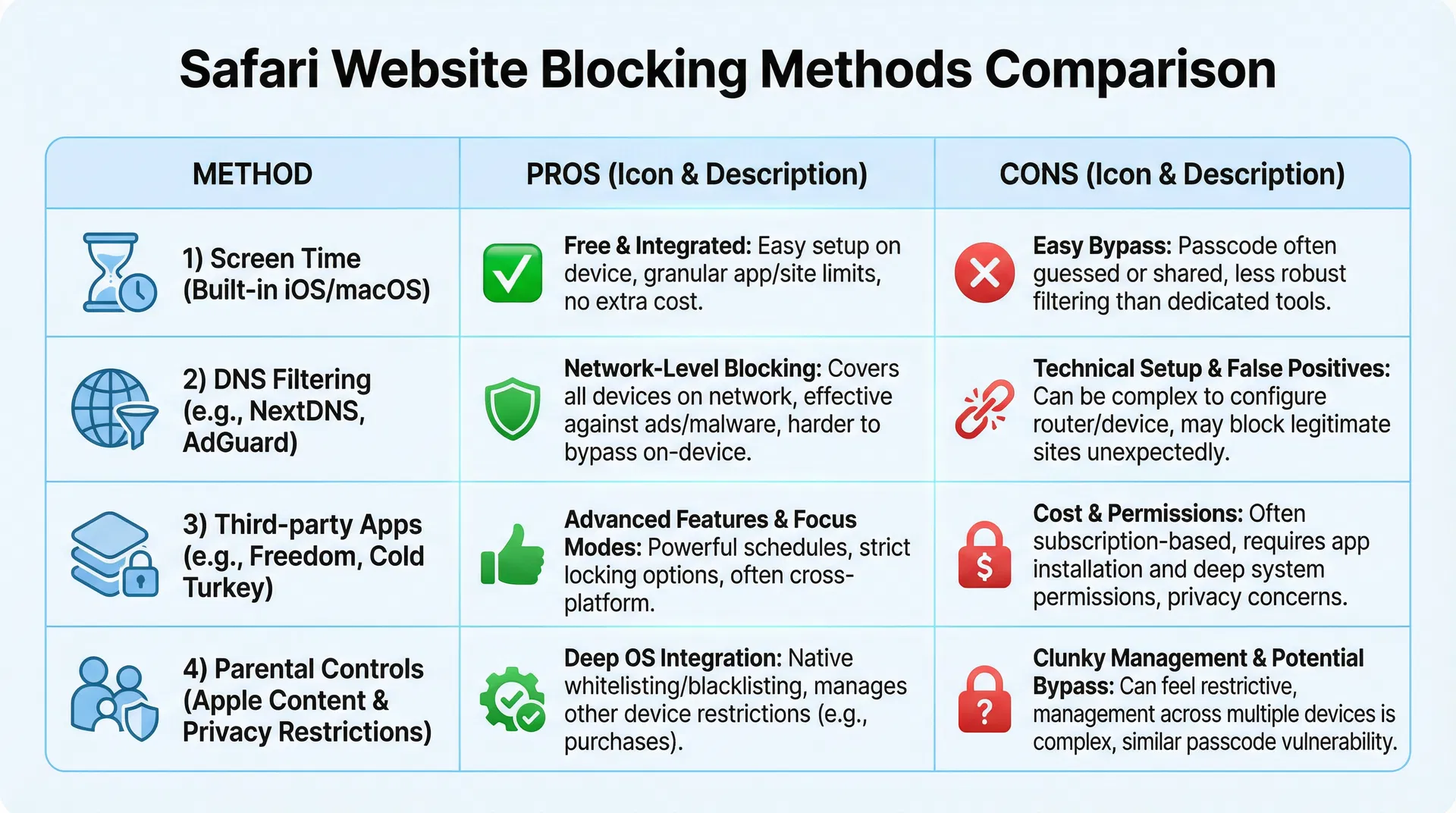
Method 1: Screen Time Content & Privacy Restrictions (Recommended)
This is the most straightforward method for blocking websites on both iPhone and Mac.
On iPhone:
Step 1: Open Settings and tap “Screen Time”
Step 2: Tap “Content & Privacy Restrictions”
Step 3: Toggle on “Content & Privacy Restrictions”
Step 4: Enter your Screen Time passcode
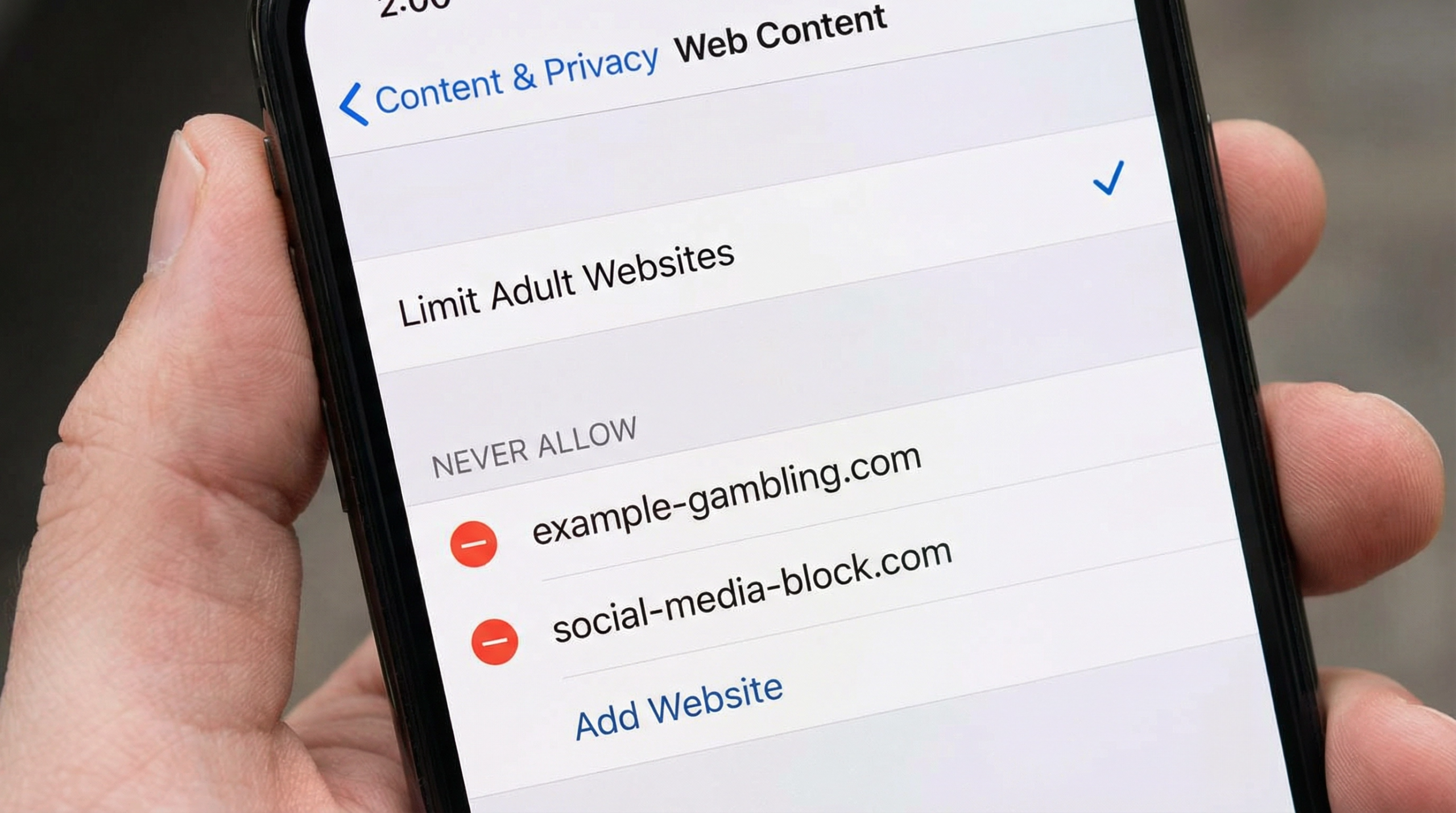
Step 5: Tap “Web Content”
Step 6: Select “Limit Adult Websites”
Step 7: Tap “Add a Website Under ‘Never Allow’” to add specific sites to block
Step 8: Enter the website URL you want to block
Step 9: Tap “Add” to confirm
On Mac:
Step 1: Click the Apple menu and select “System Preferences”
Step 2: Click “Screen Time”
Step 3: Click “Content & Privacy”
Step 4: Click “Web Content”
Step 5: Select “Limit Adult Websites”
Step 6: Click the “+” button to add websites to the “Never Allow” list
Step 7: Enter the website URL and click “Add”
Method 2: DNS Filtering
DNS filtering blocks websites at the network level, preventing access even if you try to bypass Safari restrictions.
Setting Up DNS Filtering on iPhone:
Step 1: Go to Settings > Wi-Fi
Step 2: Tap the “i” icon next to your Wi-Fi network
Step 3: Scroll down and tap “Configure DNS”
Step 4: Select “Manual”
Step 5: Add DNS server addresses (e.g., Cloudflare’s 1.1.1.2 for family-friendly filtering)
Step 6: Tap “Save”
Setting Up DNS Filtering on Mac:
Step 1: Click the Apple menu and select “System Preferences”
Step 2: Click “Network”
Step 3: Select your Wi-Fi connection and click “Advanced”
Step 4: Click the “DNS” tab
Step 5: Click the “+” button and add family-friendly DNS servers
Step 6: Click “OK” and “Apply”
Method 3: Third-Party Website Blocking Apps
Several apps offer advanced website blocking features:
Popular Options:
- One Sec: Combines website blocking with focus timer features
- Freedom: Blocks websites and apps across all your devices
- Cold Turkey: Powerful blocking with customizable schedules
- LeechBlock: Lightweight and free website blocker
These apps typically offer:
– Scheduled blocking (block sites during work hours)
– Customizable block lists
– Whitelist functionality
– Usage tracking and analytics
Method 4: Parental Controls (Family Sharing)
If you’re setting up restrictions for a child’s device:
On iPhone:
Step 1: Go to Settings > Family Sharing
Step 2: Select the child’s account
Step 3: Tap “Screen Time”
Step 4: Tap “Content & Privacy Restrictions”
Step 5: Follow the steps above to add websites to the “Never Allow” list
On Mac:
Step 1: Click the Apple menu and select “System Preferences”
Step 2: Click “Parental Controls”
Step 3: Select the child’s account
Step 4: Click “Web”
Step 5: Select “Try to limit access to adult websites”
Step 6: Click “Customize” to add specific sites to block
Comparison of Methods
| Method | iPhone | Mac | Difficulty | Effectiveness |
|---|---|---|---|---|
| Screen Time | Yes | Yes | Easy | High |
| DNS Filtering | Yes | Yes | Medium | Very High |
| Third-Party Apps | Yes | Yes | Easy | High |
| Parental Controls | Yes | Yes | Medium | High |
Best Practices for Website Blocking
- Combine Methods: Use Screen Time with DNS filtering for maximum effectiveness
- Regular Updates: Keep your blocking lists current with new sites
- Strong Passcodes: Use a strong Screen Time passcode to prevent bypassing
- Monitor Usage: Regularly check which sites are being accessed
- Communicate: If blocking for family members, explain the purpose
Bypassing Website Blocks (Security Awareness)
Be aware that determined users may try to bypass blocks using:
- VPNs (Virtual Private Networks)
- Proxy servers
- Different browsers
- Incognito/Private browsing mode
- Mobile data instead of Wi-Fi
To prevent bypassing:
– Use DNS filtering (network-level blocking)
– Disable VPN access in Screen Time settings
– Monitor app installations
– Regularly review browsing activity
Frequently Asked Questions
Q: Can I block websites on Safari without Screen Time?
A: Screen Time is the easiest method, but DNS filtering and third-party apps offer alternatives.
Q: Will blocking websites affect other apps?
A: Screen Time restrictions apply to Safari only. DNS filtering affects all apps using that network.
Q: Can I schedule website blocking for specific times?
A: Screen Time allows scheduling, and third-party apps offer more advanced scheduling options.
Q: What if I forget my Screen Time passcode?
A: You’ll need to reset it through your Apple ID or contact Apple Support.
Q: Can I block websites on a specific Wi-Fi network only?
A: Yes, DNS filtering settings apply to individual Wi-Fi networks.
Troubleshooting
Websites Still Accessible:
- Verify the website is correctly added to the block list
- Check if you’re using a different network or mobile data
- Ensure Screen Time is properly enabled
- Restart Safari and your device
Can’t Access Legitimate Websites:
- Check if the site is accidentally on the block list
- Verify DNS settings are correct
- Try accessing from a different network
- Temporarily disable restrictions to test
Conclusion
Blocking websites on Safari is straightforward with multiple methods available for different needs. Whether you’re managing your own browsing habits or protecting family members, Screen Time, DNS filtering, and third-party apps provide effective solutions. By combining multiple methods and following best practices, you can create a safe and focused browsing environment on both iPhone and Mac.
Related Articles: