





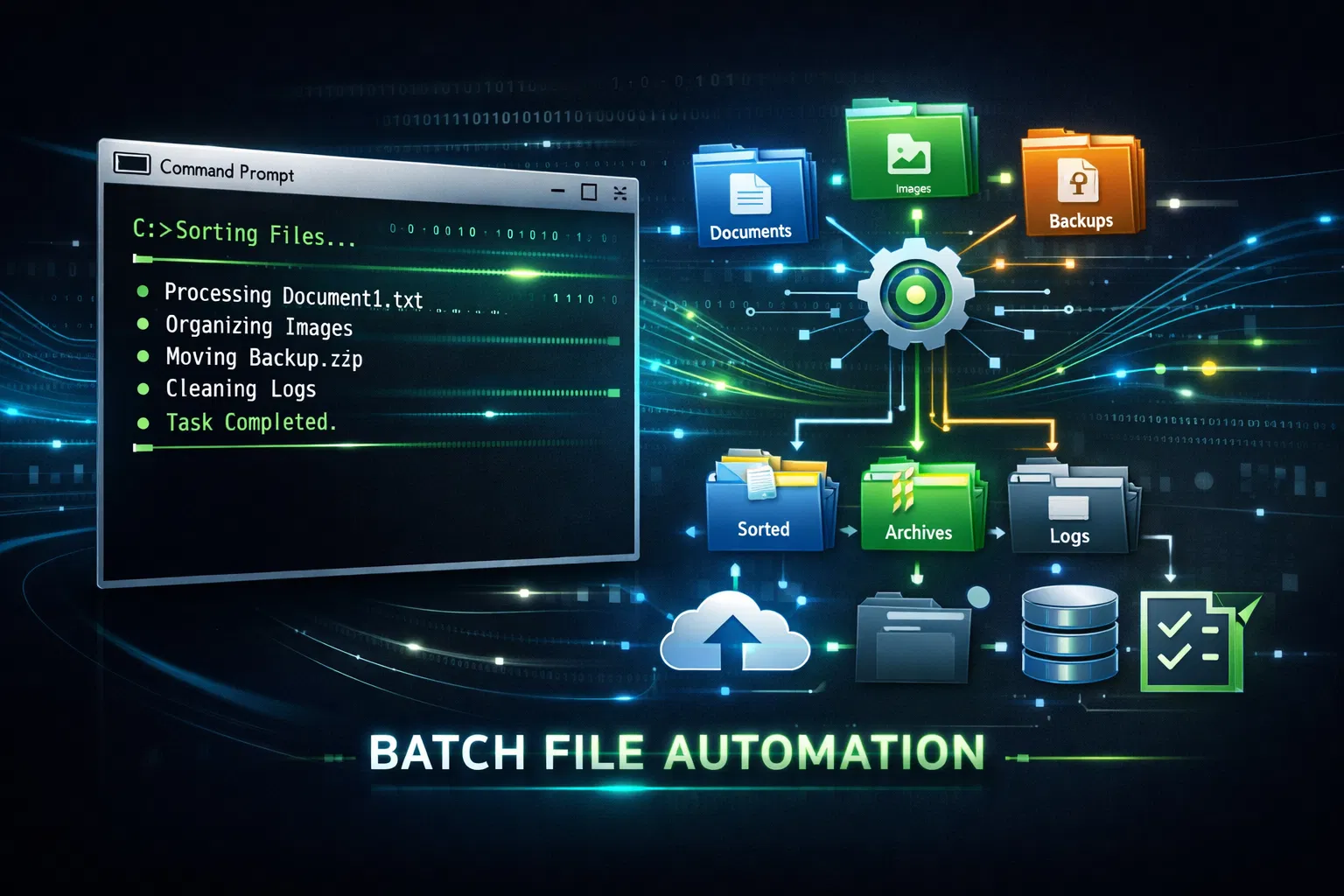
Batch files remain one of the simplest yet most effective ways to automate repetitive tasks on Windows 11. Without requiring advanced programming skills, they allow users to streamline system maintenance, file organization, and routine workflows using built-in command-line tools.
What Are Batch Files?
Batch files are plain text files with a .bat extension that contain a sequence of Command Prompt instructions. When executed, Windows processes each command in order, enabling automation of tasks that would otherwise require manual input.
They are especially useful for system admins, power users, and anyone looking to improve productivity on Windows 11.
The 7 Most Useful Batch Files for Windows 11
1. Automated Disk Cleanup Batch File
This script removes temporary files, clears cache, and empties the recycle bin automatically.
Why it matters: Temporary files accumulate quickly and can slow down system performance.
Typical impact: Frees up 500MB to 2GB of disk space.
Recommended usage: Once per month.
Core commands include:
del /s /q %temp%\*
cleanmgr /sagerun
2. Backup Important Files Batch File
A backup batch file copies critical files from one location to another using commands like xcopy or robocopy.
Use case: Daily or weekly data protection
Key benefit: Prevents data loss from accidental deletion or system failure
Flexibility: Easily customize source and destination paths
Example logic:
Copy Documents → External drive or cloud-synced folder
Use /E /H /C /I flags for complete backup coverage
3. System Maintenance Batch File
This is an all-in-one script that runs several maintenance utilities in sequence.
Tasks typically included:
Disk check (chkdsk)
System file repair (sfc /scannow)
Disk cleanup
Defragmentation (defrag)
Execution time: 30–60 minutes
Best practice: Run monthly with administrator privileges
4. Automatic File Organizer Batch File
This script automatically sorts files into folders based on file type.
Example categories:
Images → .jpg, .png
Documents → .pdf, .docx
Videos → .mp4, .mov
Benefits:
Keeps Downloads folder clean
Saves hours of manual sorting
Improves workflow efficiency
Typical command pattern:
move *.jpg Images\
move *.pdf Documents\
5. Network Connectivity Check Batch File
A monitoring script that continuously checks internet connectivity using ping.
Purpose: Detect unstable or dropped connections
Output: Logs results to a .txt file
Customization: Set interval (e.g., every 60 seconds)
Common usage:
Troubleshooting ISP issues
Monitoring uptime for remote work setups
6. Scheduled Task Reminder Batch File
This batch file creates pop-up reminders using simple system commands.
Use cases:
Meeting alerts
Task deadlines
Break reminders
Notification method:
msg * "Your reminder message"
Customization:
Combine with Task Scheduler for precise timing
Create multiple reminder scripts for different events
7. System Report Generator Batch File
Generates a detailed system report and saves it as a text file.
Information included:
OS version and build
CPU and memory details
Disk usage
Installed hardware
Useful for:
Troubleshooting
Documentation
IT support requests
Key command:
systeminfo > report.txt
How to Create and Run Batch Files
Open Notepad
Paste batch code
Save as filename.bat
Double-click to run
Or right-click and select “Run as administrator”
Best Practices
Always test first in safe environment
Use comments to explain code
Include error handling
Backup data before running maintenance scripts
Save output to log files
FAQ
Q: Can I schedule batch files to run automatically?
A: Yes, use Windows Task Scheduler to set up automatic execution.
Q: Are batch files safe?
A: Yes, if created by trusted sources. Always review code before running.
Related Articles: