





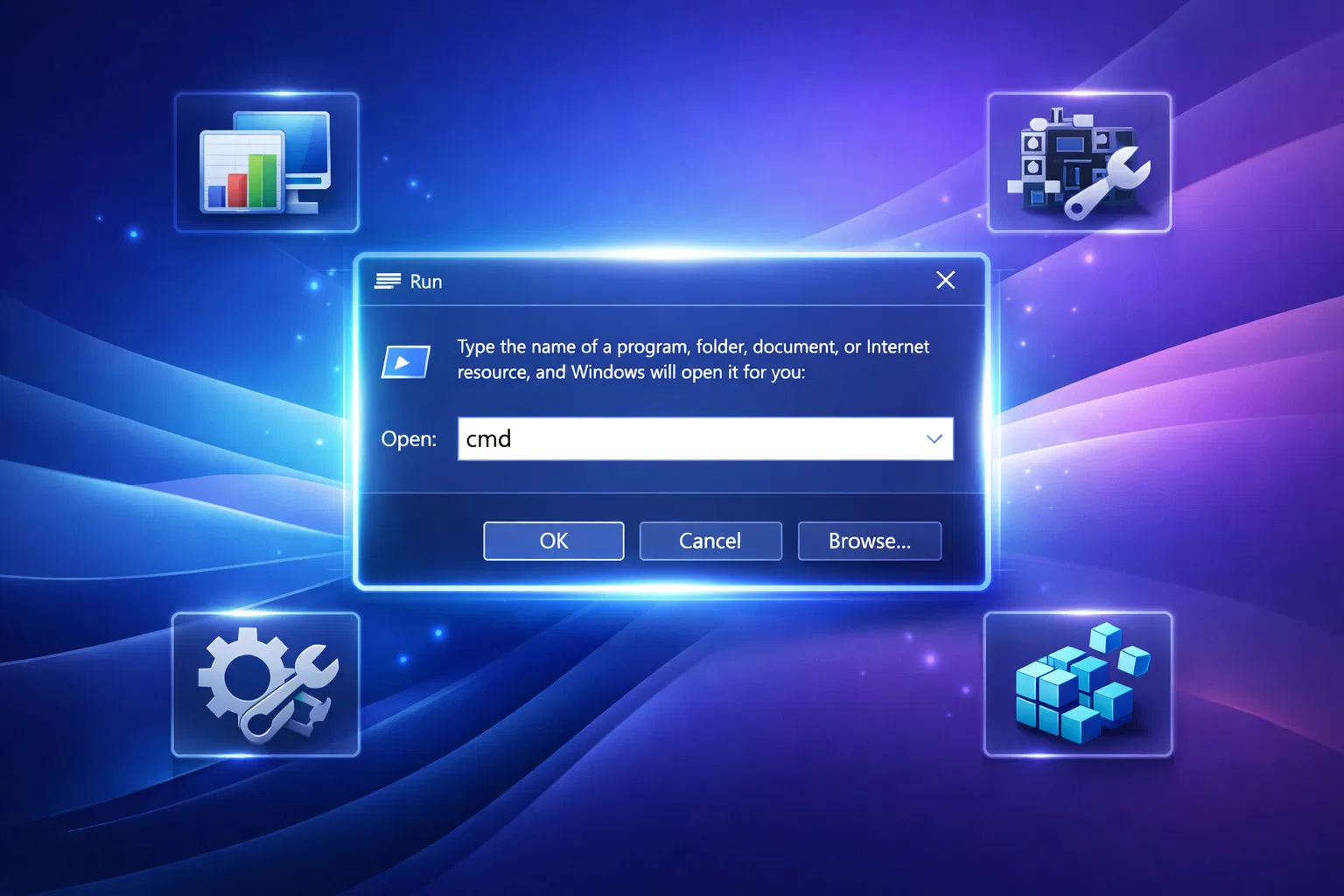
Windows Run commands are one of the fastest ways to access system tools without digging through menus. By pressing Win + R, you can instantly launch utilities that help you monitor performance, fix issues, and manage your PC more efficiently.
Whether you’re a casual user or a power user, learning a few key Run commands can save time and streamline everyday tasks.
The 8 Essential Run Commands Every Windows User Should Know
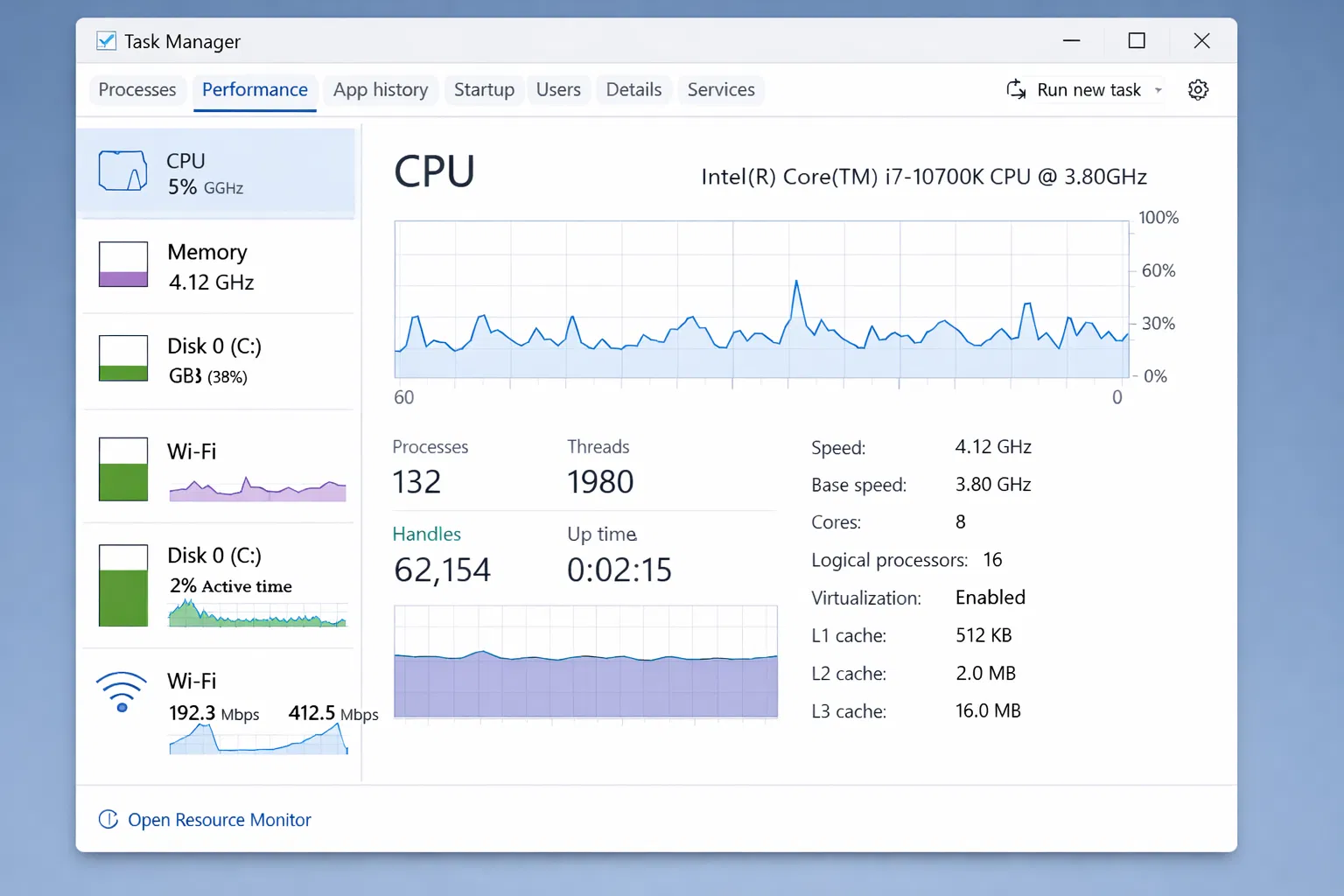
1. taskmgr – Task Manager
Opens the Task Manager to monitor running applications and system resources.
- Use Case: Monitor CPU usage, RAM consumption, and close unresponsive applications
- Keyboard Shortcut: Ctrl + Shift + Esc (alternative)
- Benefits: Real-time performance monitoring
2. msconfig – System Configuration
Opens System Configuration to manage startup items, services, and boot settings.
- Use Case: Disable unnecessary startup programs to improve boot time
- Features: Startup tab, Services tab, Tools tab
- Impact: Can improve system performance by 20-30%
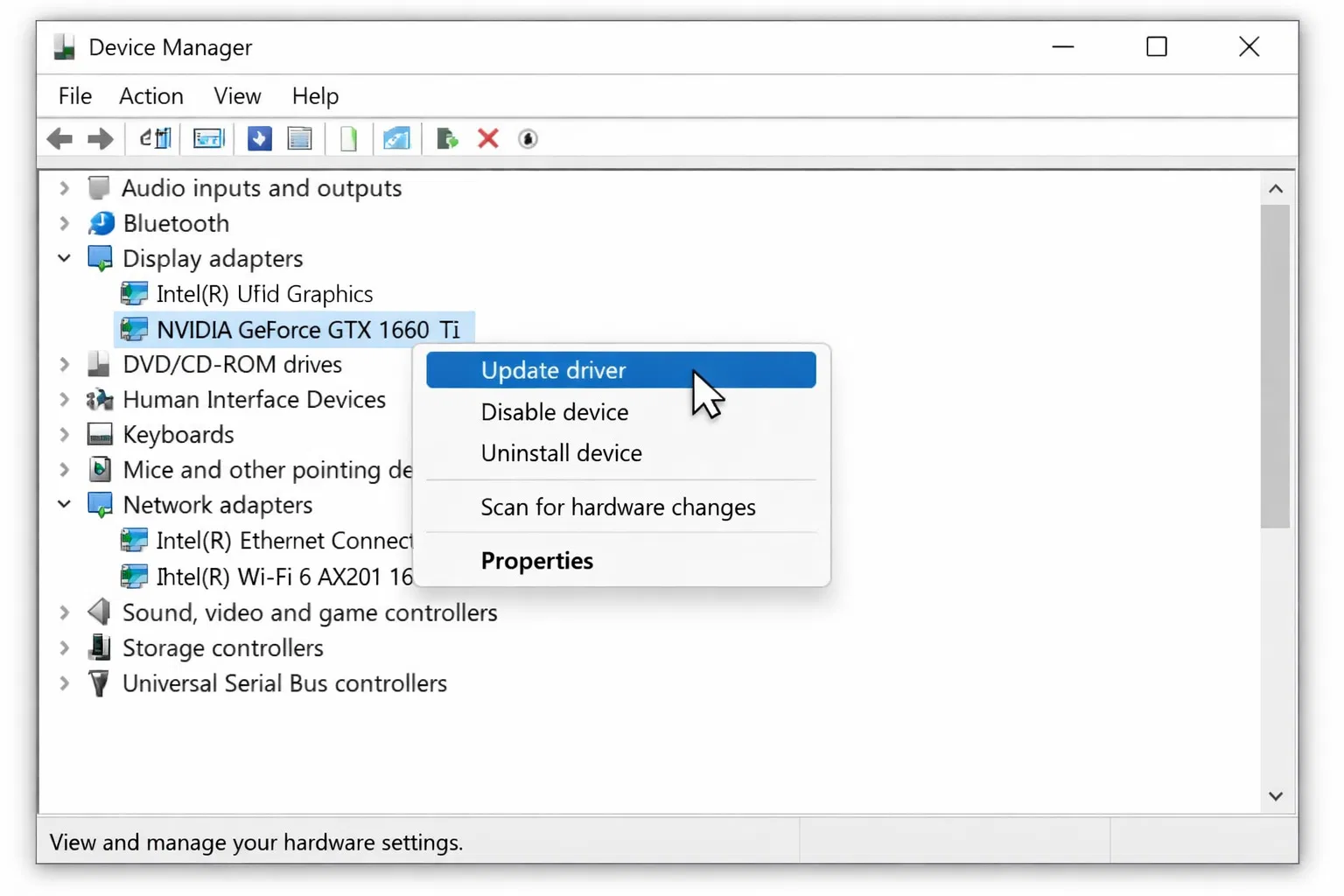
3. devmgmt.msc – Device Manager
Opens Device Manager to manage hardware drivers and troubleshoot device issues.
- Use Case: Update graphics drivers, audio drivers, or network adapters
- Common Tasks: Disable/enable devices, update drivers, check device status
- Importance: Critical for hardware troubleshooting
4. regedit – Registry Editor
Opens the Windows Registry Editor to edit system-level settings.
- Caution: Requires careful handling; backup before making changes
- Advanced Users: Customize Windows behavior and appearance
- Warning: Incorrect edits can cause system instability
5. appwiz.cpl – Programs and Features
Opens the Programs and Features panel to uninstall applications.
- Use Case: Completely remove software and associated files
- Advantage: More thorough than using app uninstallers
- Benefit: Frees up disk space and improves system performance
6. services.msc – Services Manager
Opens the Services Manager to start, stop, or configure background services.
- Use Case: Disable unnecessary services to improve performance
- Advanced: Configure service startup types (Automatic, Manual, Disabled)
- Caution: Only disable services you understand
7. cleanmgr – Disk Cleanup
Launches the Disk Cleanup utility to free up drive space.
- Use Case: Remove temporary files, cache, and old Windows updates
- Benefit: Can free up several gigabytes of space
- Frequency: Run monthly for optimal performance
8. sysdm.cpl – System Properties
Opens System Properties to manage environment variables, performance settings, and system protection.
- Use Case: Configure virtual memory, manage environment variables
- Features: Advanced tab, System Protection, Remote settings
- Importance: Essential for system optimization
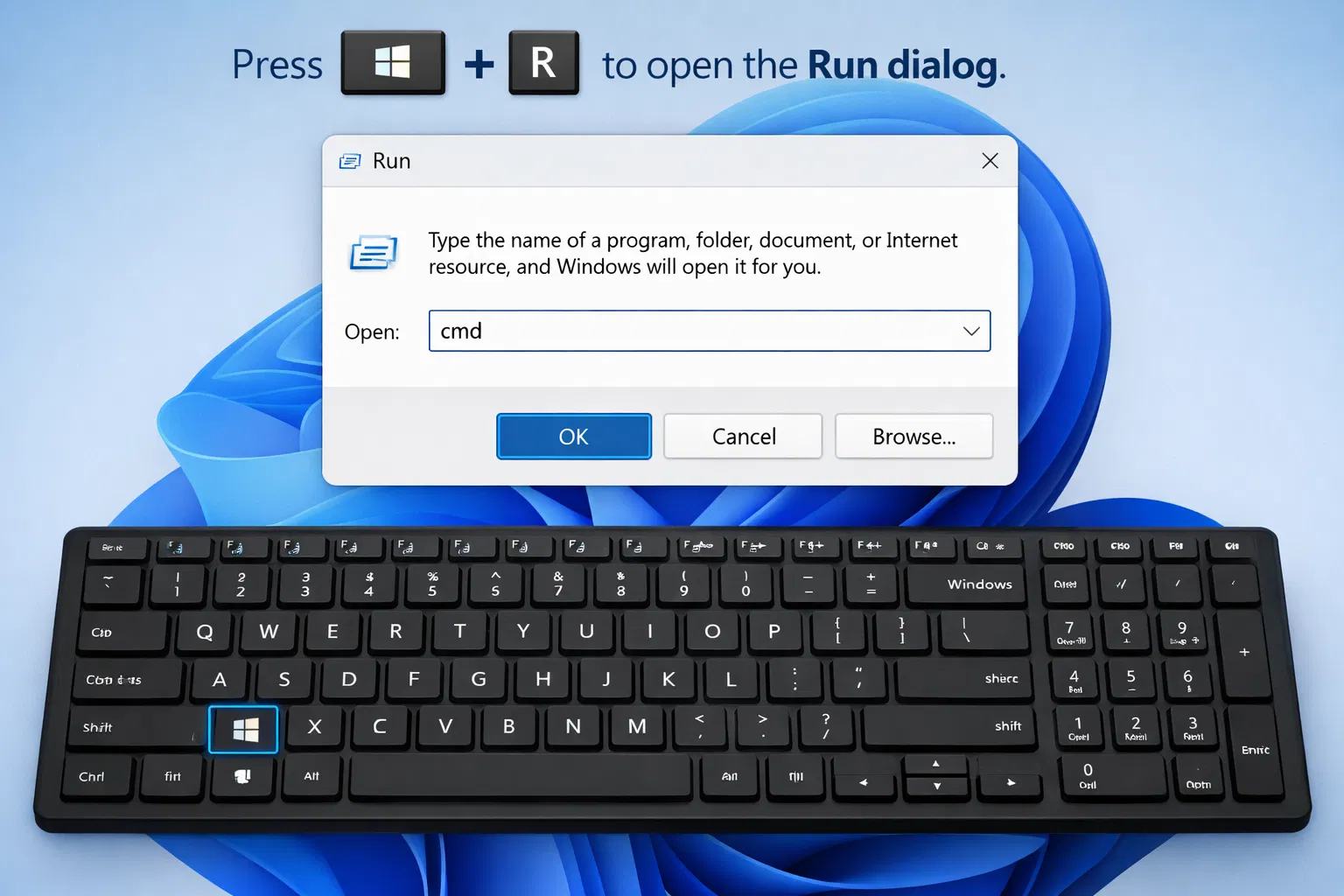
How to Use Run Commands
- Press Win + R on your keyboard
- Type the command (e.g., taskmgr)
- Press Enter to execute the command
- Grant permissions if prompted by User Account Control
Frequently Asked Questions
Are Run commands safe to use?
Most Run commands are safe. However, tools like Registry Editor and Services Manager should be used with caution.
Do Run commands work in Windows 11?
Yes. Most Run commands are fully compatible with both Windows 10 and Windows 11.
What is the Run command for Control Panel?
Type control in the Run dialog to open Control Panel.
Can I create custom Run commands?
Yes. Advanced users can create custom shortcuts or modify system paths to launch apps via Run.
Related Articles: