





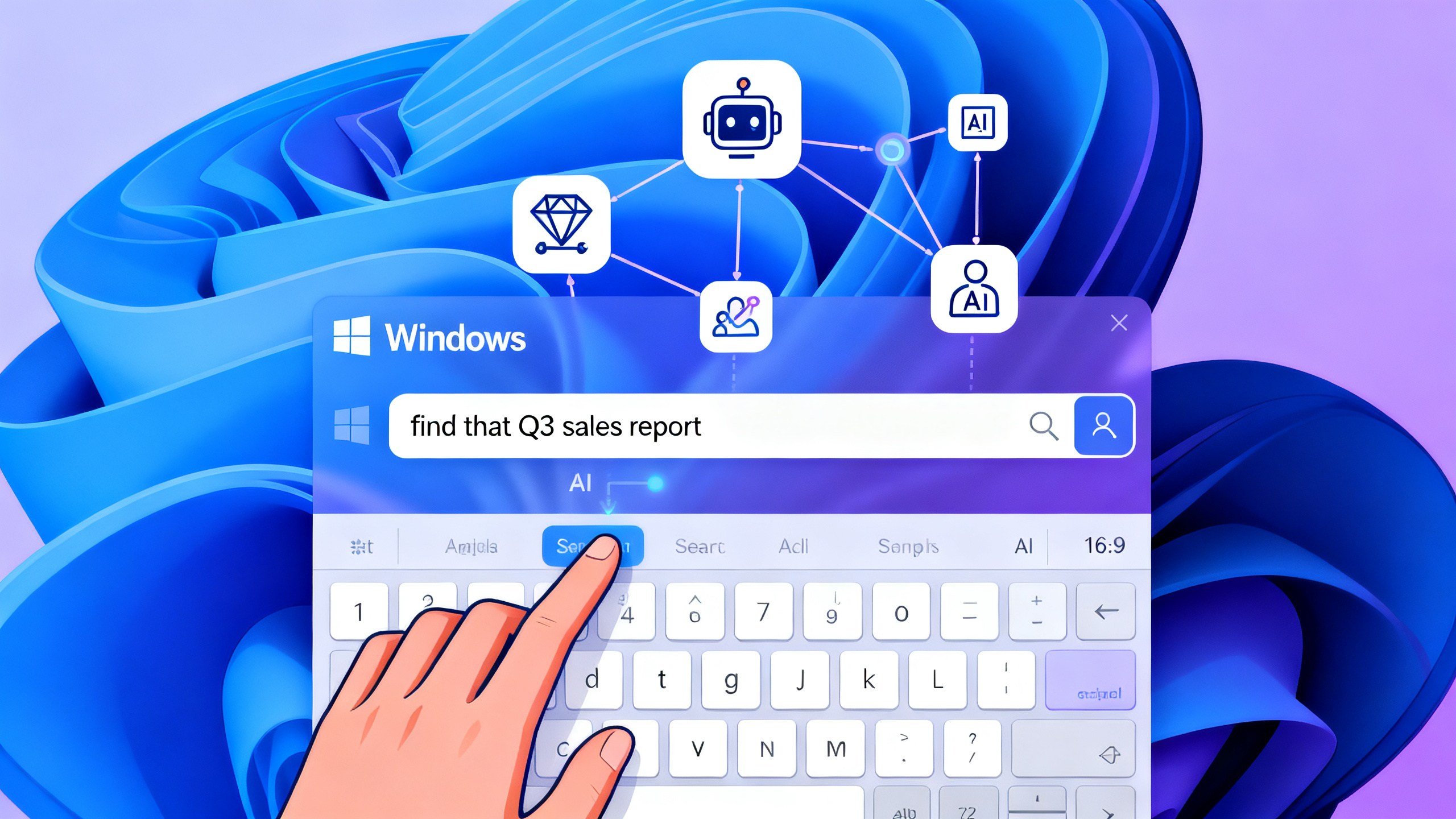
Windows 11 AI Search is the biggest change to how you find files and information on your PC since the Start menu. Instead of remembering exact file names or folders, you can now search using natural language — “find that Q3 sales spreadsheet” or “show me photos from the Hawaii trip” — and Windows understands what you mean, not just what you type. This guide covers exactly how it works, what hardware you need, and how to use it in 2026.
What Is Windows 11 AI Search?
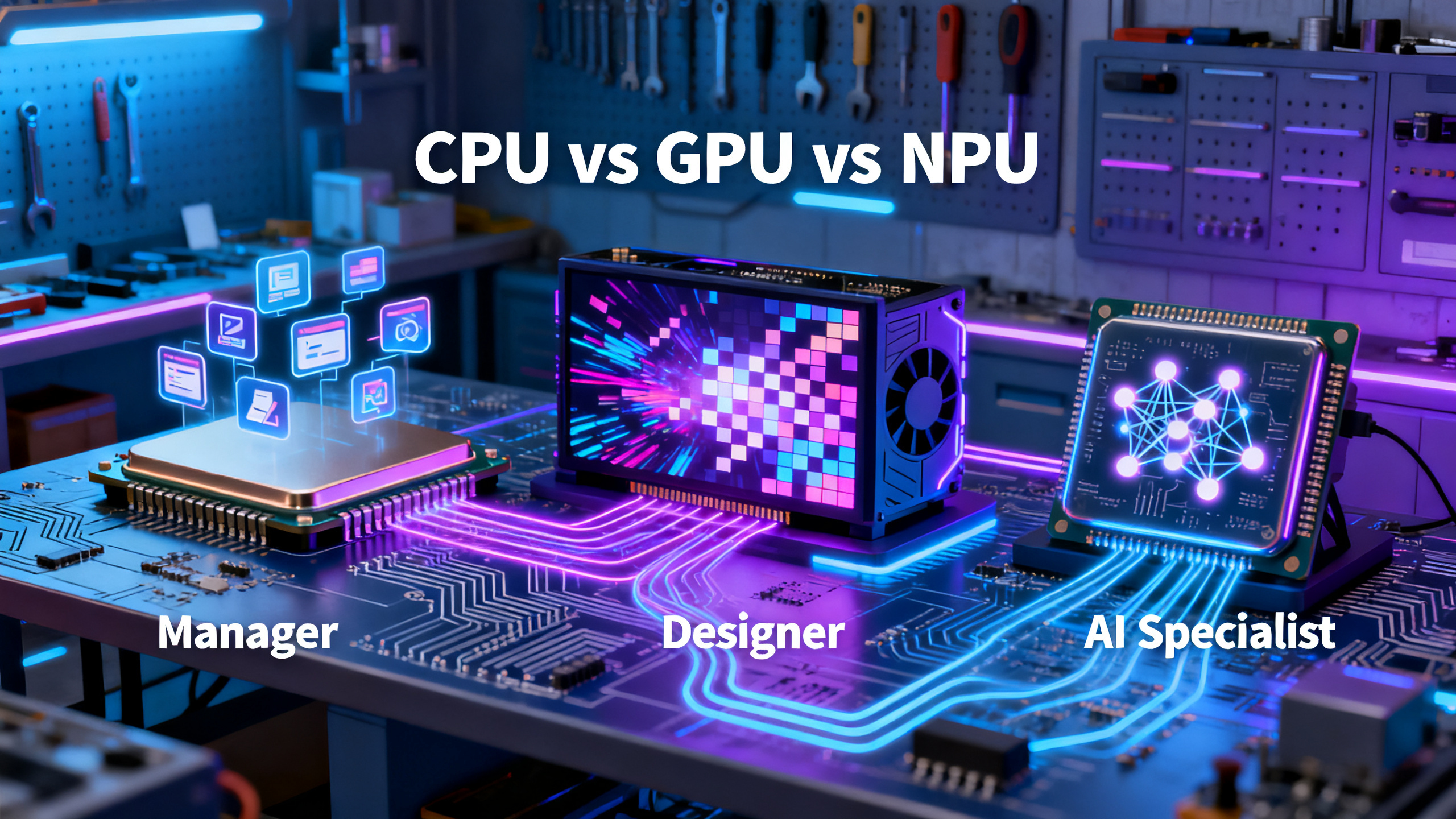
Windows 11 AI Search is a new search system that uses artificial intelligence running on your PC’s NPU (Neural Processing Unit) to understand the meaning and context of your files — not just keywords. It replaces the old Windows Search that matched exact file names with a system that understands concepts.
Microsoft calls this semantic indexing. Instead of building a database of file names and text snippets, your PC builds a conceptual map of everything on your drive. When you search for “that presentation about quarterly sales projections,” the AI understands you’re looking for a business document containing financial forecasts, even if neither “quarterly” nor “sales” appears in the filename.
This feature is exclusive to Copilot+ PCs — Windows computers with a dedicated NPU capable of at least 40 TOPS (trillion operations per second) of AI performance. Standard Windows 11 PCs without an NPU continue using traditional keyword-based search.
How Windows 11 AI Search Works: The Technology Behind It
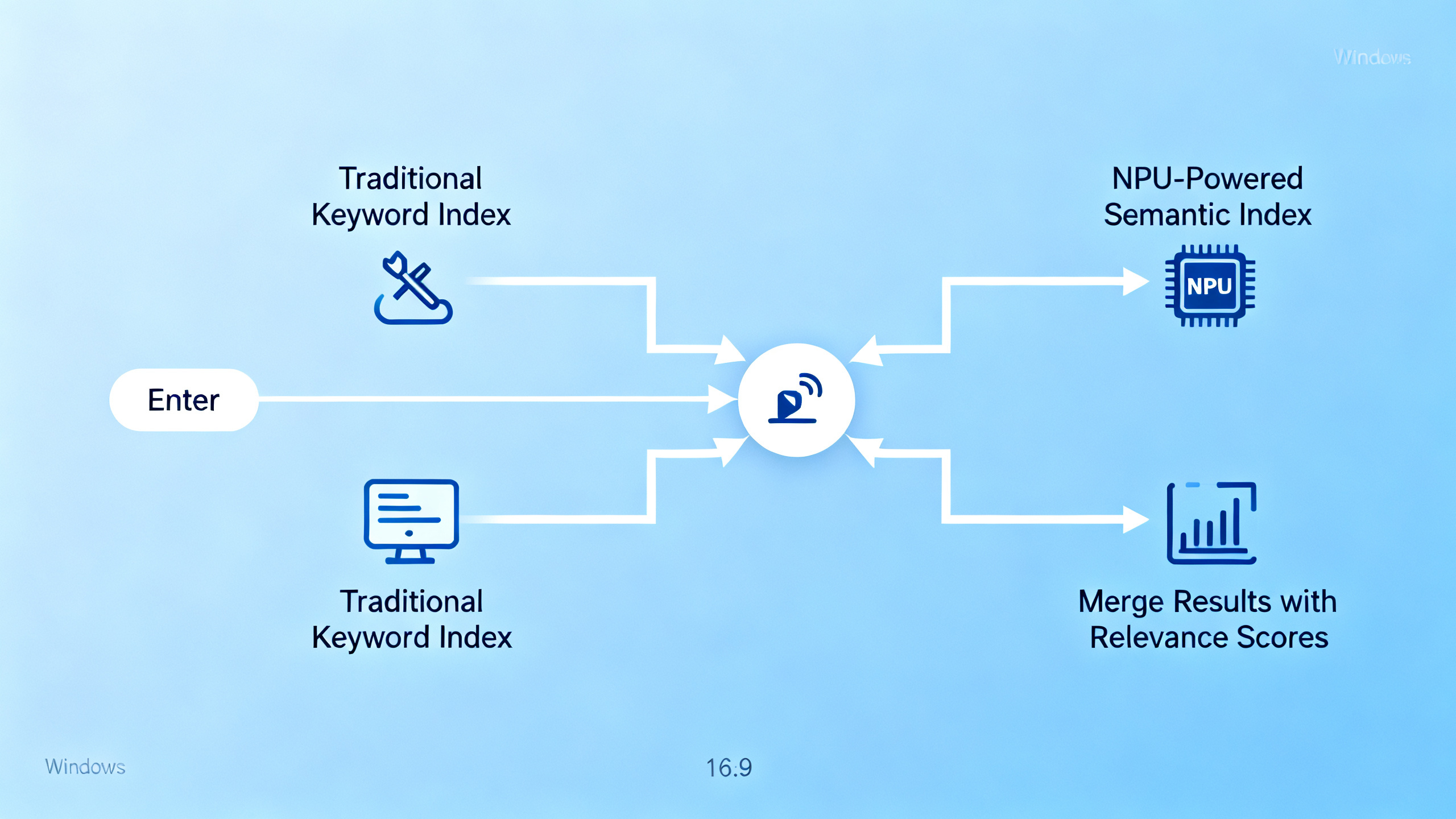
Microsoft built a dual-indexing system that runs two search engines in parallel:
- Traditional indexing — The classic system that matches file names, metadata, and exact text content
- Semantic indexing — A new AI-powered layer that analyzes meaning, relationships, and concepts using transformer-based AI models
When you add or modify a file, both indexing processes run simultaneously. The semantic component analyzes content through AI models running entirely on your device’s NPU. Search queries trigger both systems, and results are combined based on relevance scoring — semantic matches and keyword matches side by side.
All processing happens locally on your NPU. Your search terms, file contents, and results never leave your device. This is the key difference from cloud-based AI search tools: zero data transmission, instant results, and full offline functionality.
How to Use Windows 11 AI Search: Step-by-Step Tutorial
Using AI Search is simpler than traditional search. Here is how to get the most out of it:
Step 1: Open Search
Press the Windows key or click the search box on the taskbar. If you have a Copilot+ PC with the latest Windows 11 update, AI Search is enabled by default.
Step 2: Type Naturally
Instead of guessing file names, describe what you are looking for in plain English:
| Traditional Search (Old) | AI Search (New) |
|---|---|
| “budget_2026.xlsx” | “that spreadsheet I made for this year’s budget” |
| “img_5842.jpg” | “photos from the beach vacation last summer” |
| “report.docx” | “find the Q3 marketing report” |
Step 3: Use the Ask Copilot Feature (New in Mid-2026)
Starting mid-2026, the taskbar search box integrates Ask Copilot. Type or speak a question like “find my Q3 sales report” and Copilot will parse the intent, surface the file from local storage or OneDrive, and optionally generate a summary — all from the same search box. This makes the taskbar search a conversational entry point rather than just a file locator.
Step 4: Refine Results
If the semantic results are too broad, you can:
- Filter by file type (Documents, Images, Spreadsheets)
- Filter by date range (Today, This Week, This Month)
- Switch back to keyword mode for exact matches
- Hover over results to see why items matched semantically
Complete Copilot+ PC AI Feature Matrix (2026)
| Feature | What It Does | Requires NPU? | Works Offline? |
|---|---|---|---|
| AI Search (Semantic Indexing) | Natural language file search using concept understanding | ✅ 40+ TOPS | ✅ |
| Ask Copilot (Taskbar Search) | Conversational AI in search box — find, summarize, take action | ✅ 40+ TOPS | ⚠️ Partially |
| Windows Recall | Searchable timeline of everything you’ve seen on your PC | ✅ 40+ TOPS | ✅ |
| Live Captions + Translation | Real-time translation of 40+ languages into English captions | ✅ 40+ TOPS | ✅ |
| Windows Studio Effects | AI camera effects: background blur, eye contact, framing | ✅ 40+ TOPS | ✅ |
| Cocreator in Paint | AI image generation and editing from text descriptions | ✅ 40+ TOPS | ✅ |
| Click-to-Do | Contextual AI actions on anything on your screen | ✅ 40+ TOPS | ✅ |
| AI Writing Tools (Notepad) | Summarize, rewrite, generate text on-device | ✅ 40+ TOPS | ✅ |
| AI in Photos | Background removal, generative erase, AI enhancement | ✅ 40+ TOPS | ✅ |
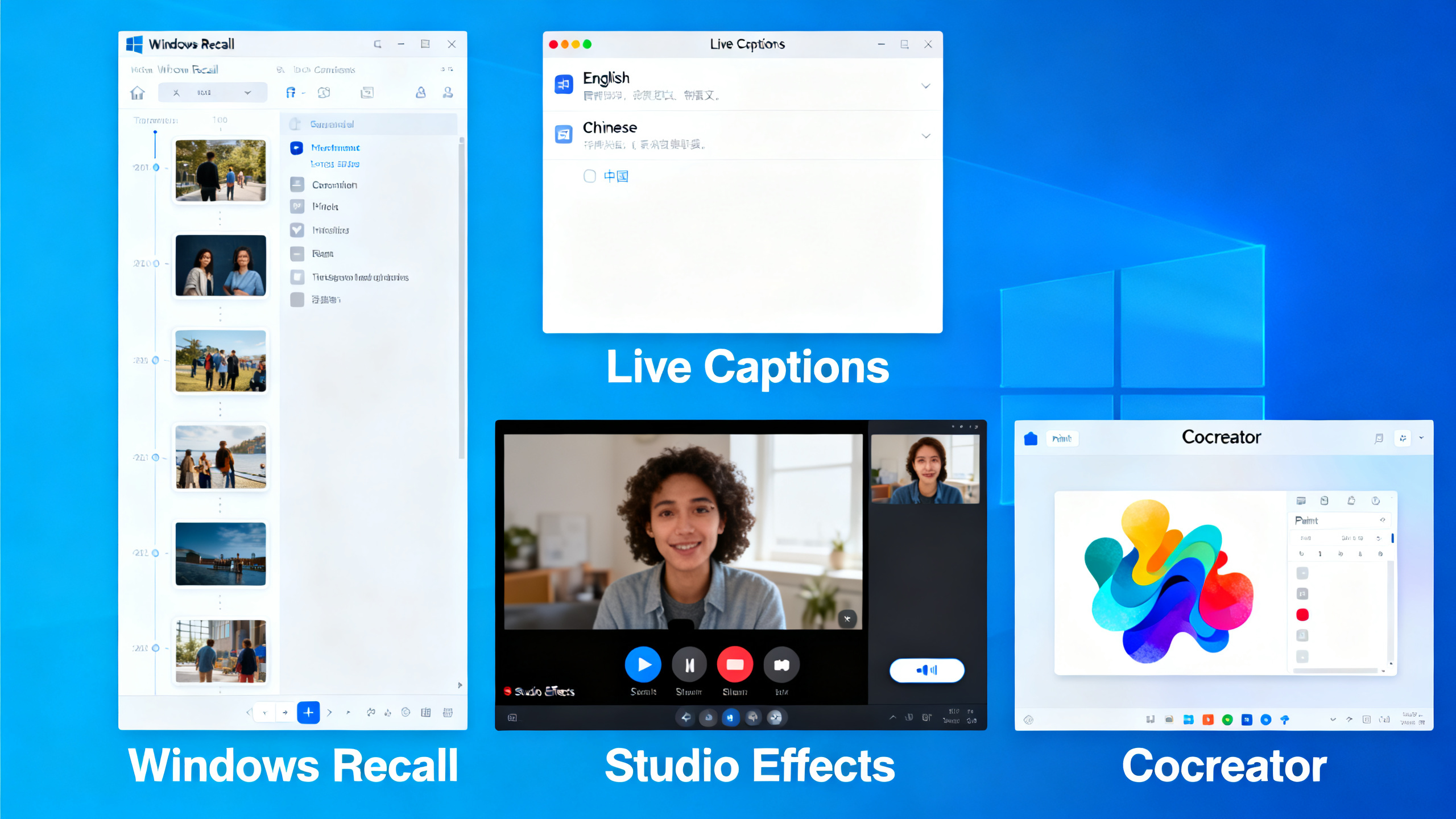
The key distinction: every feature in this table runs entirely on-device. No cloud processing, no subscription, no internet required for core functionality.
Ask Copilot: The New Taskbar AI Search (Mid-2026)
The biggest change coming to Windows 11 in mid-2026 is the integration of Ask Copilot directly into the taskbar search box. This transforms search from a file finder into a conversational AI assistant.
When you type “find my Q3 sales report and summarize the key numbers,” Ask Copilot will:
- Parse the intent using natural language understanding
- Surface the file from local storage or OneDrive via semantic indexing
- Generate a summary using Microsoft 365 Copilot integration
- Present the result in the search box — no need to open the document
Ask Copilot can also control system settings (“turn on Bluetooth and open Spotify”), draft short responses, and execute cross-app workflows — all from the search bar. Microsoft positions this as an optional feature (you can disable it if you prefer classic search), but it represents the direction of Windows search going forward.
When Does Windows 11 AI Search NOT Work?
AI Search is powerful but has real limitations. Here’s what to expect:
- You don’t have a Copilot+ PC — AI Search requires a 40+ TOPS NPU. Without it, you get traditional keyword search only.
- Very large language models — The on-device AI can’t run models like DeepSeek V4 (1.6T parameters). It uses lightweight transformer models optimized for the NPU.
- Cloud-only files — Files stored only in cloud services without local sync won’t be indexed semantically. OneDrive files that are synced locally will work.
- Encrypted or password-protected files — These are excluded from semantic indexing for security reasons.
- Initial setup takes time — When you first get a Copilot+ PC, semantic indexing takes several hours to process your entire file library. Recently accessed files are prioritized.
- VPN or corporate environments — Some enterprise policies may disable semantic indexing for compliance reasons.
Privacy: Why Local AI Search Matters
Windows 11 AI Search processes everything on your device. This is a deliberate design choice that addresses the biggest concern with AI-powered features: data privacy.
Unlike cloud-based AI services where your queries and files are processed on remote servers, semantic indexing on Copilot+ PCs:
- Keeps all indexing databases encrypted and stored locally
- Never transmits file contents or search queries to Microsoft
- Works fully offline — no internet connection required
- Excludes sensitive content (passwords, banking info, private browsing) by default
- Requires Windows Hello biometric authentication for Recall snapshots
For organizations with strict data governance (healthcare, legal, finance), this local processing eliminates concerns about third-party access to indexed content. Microsoft’s Pluton security processor provides hardware-level protection for the entire system.
Hardware Requirements: Do You Have a Copilot+ PC?
| Component | Minimum Requirement |
|---|---|
| NPU Performance | 40+ TOPS |
| RAM | 16 GB minimum |
| Storage | 256 GB SSD minimum |
| Operating System | Windows 11 24H2 or later |
| Qualifying Processors | Intel Core Ultra 200V (47 TOPS), AMD Ryzen AI 300 (up to 50 TOPS), Qualcomm Snapdragon X Elite/Plus (45 TOPS) |
To check if your PC qualifies: go to Settings > System > About and look for the Copilot+ badge, or check Task Manager > Performance tab for an NPU section.
Frequently Asked Questions
Does Windows 11 AI Search work offline?
Yes. All semantic indexing and AI search processing happens on your device’s NPU. No internet connection is required for searching local files.
Can I use AI Search without a Copilot+ PC?
No. Semantic indexing requires a 40+ TOPS NPU. Without it, Windows uses traditional keyword-based search.
Does AI Search work with OneDrive files?
Yes, but only for files that are synced locally. Cloud-only files in OneDrive are not indexed semantically. Files marked as “Always keep on this device” will be indexed.
Is my data private with AI Search?
Yes. All processing is local. Your files, search queries, and the semantic index never leave your device. No data is sent to Microsoft servers.
Can I disable AI Search?
Yes. You can disable semantic indexing in Settings > Privacy & Security > Search Permissions. Windows will fall back to traditional keyboard search.
Will AI Search slow down my PC?
No. Semantic indexing runs on the NPU, not the CPU. Microsoft reports less than 5% battery impact with semantic indexing active. Initial indexing may take several hours but runs at low priority.
Conclusion
Windows 11 AI Search represents a genuine evolution in how we interact with our computers. Instead of forcing users to remember exact file names and folder structures, it understands intent — and it does so privately, offline, and efficiently on the NPU.
As of mid-2026, this capability is exclusive to Copilot+ PCs with 40+ TOPS NPUs. With the Ask Copilot integration coming to the taskbar search box, Microsoft is clearly positioning AI Search as the default way to find files on Windows going forward.
If you’re buying a new Windows PC in 2026, a Copilot+ certified machine ensures you have access to these features. For existing PC users, AI Search is one of the strongest reasons to consider upgrading.
Related:
NPU Explained: What Is a Neural Processing Unit? |
Run Local AI Models 2026
About the author: Research by the tonkonwslist.com editorial team. This guide synthesizes information from Microsoft official documentation, Windows News AI, AIPC.computer, and TWiT coverage.