


A cluttered computer can slow you down and make even simple tasks frustrating. When files are scattered across your desktop, downloads folder, and random directories, finding the document you need can take far longer than it should.
The good news is that organizing files on a Windows PC doesn’t require complicated software or technical expertise. With a clear folder structure, consistent naming system, and a few built-in Windows tools, you can create a system that keeps your files easy to find and manage.
This guide walks through practical strategies to organize your computer files and maintain a clean, efficient digital workspace.
Understanding Your Current File Structure
Before implementing new organizational strategies, take time to assess your current file system. Open File Explorer and navigate through your Documents, Downloads, and Desktop folders. Identify redundant files, duplicates, and outdated documents that can be deleted. This audit provides a baseline understanding of your organizational needs and helps you design a system that works for your specific workflow.
Implementing a Logical Folder Hierarchy
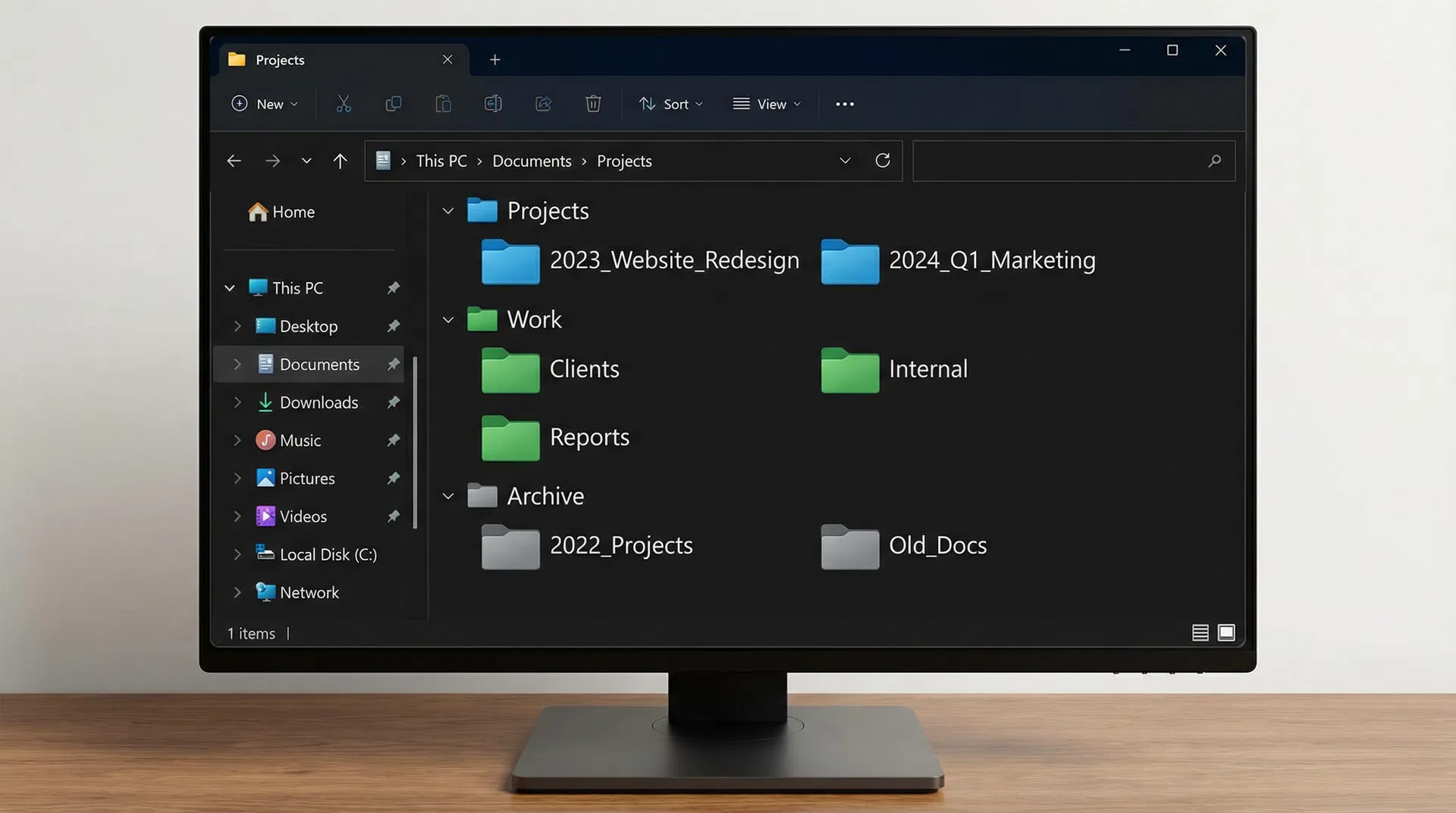
Create a clear, hierarchical folder structure that reflects your work or personal life. Start with broad categories at the top level, then create subfolders for more specific topics. For example, create a “Work” folder containing subfolders for different projects, clients, or departments. Within each project folder, create additional subfolders for documents, images, spreadsheets, and presentations. This hierarchical approach makes it easy to navigate and locate files quickly.
Using Consistent Naming Conventions
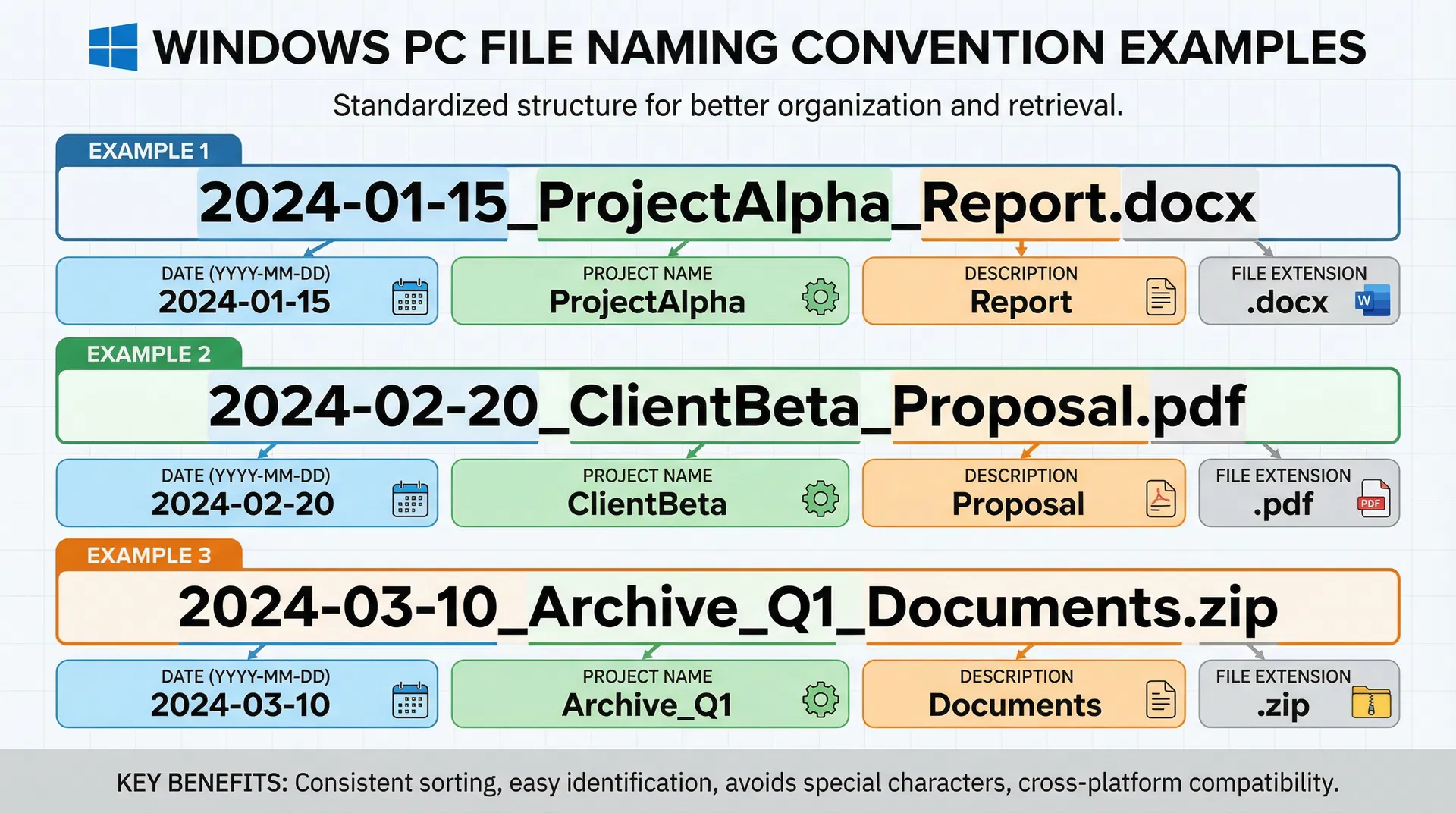
Establish a consistent naming convention for your files that includes relevant information like date, project name, and file type. Use the format “YYYY-MM-DD_ProjectName_Description” for documents. This approach ensures files are sorted chronologically and makes searching easier. Avoid generic names like “Document1” or “Final_Final_FINAL” that provide no context about file contents. Consistent naming also helps when searching for files using Windows Search.
Leveraging Windows Built-in Tools
Windows includes several built-in tools for file organization. Use File Explorer’s Quick Access feature to pin frequently accessed folders for quick navigation. Create shortcuts to important folders on your desktop or taskbar. Utilize the Search function with advanced filters to find files by date modified, file type, or size. Windows Tags allow you to add custom labels to files, making them easier to categorize and search.
Creating a Downloads Management System
The Downloads folder often becomes a dumping ground for files. Implement a system where you regularly review downloaded files and move them to appropriate locations. Create a “Downloads Archive” folder organized by date or file type. Set a monthly reminder to clean up your Downloads folder, moving useful files to permanent locations and deleting unnecessary items
Organizing by Project vs. by File Type
Decide whether to organize files by project or by file type, depending on your workflow. Project-based organization works well if you work on multiple projects simultaneously, keeping all related files together. File-type organization (Documents, Images, Videos, etc.) works better if you frequently work with specific file types across multiple projects. Some users benefit from a hybrid approach combining both methods.
Using Cloud Storage Effectively
Integrate cloud storage services like OneDrive, Google Drive, or Dropbox into your file organization system. Store frequently accessed files in cloud storage for easy access across devices. Use cloud storage’s sharing features for collaborative projects. Organize cloud folders using the same hierarchical structure as your local system for consistency. Remember that cloud storage counts toward your storage quota, so regularly delete unnecessary files.
Implementing Archive Folders
Create archive folders for completed projects or old files you need to keep but don’t access regularly. Move archived files to external storage or cloud storage to free up space on your main drive. Label archive folders with completion dates to easily identify when projects were finished. This approach keeps your active workspace clean while maintaining access to historical files when needed.
Automating File Organization with Scripts
Windows PowerShell allows you to automate file organization tasks. Create scripts that automatically move files to designated folders based on file type, date modified, or other criteria. For example, create a script that moves all PDF files older than 30 days to an archive folder. Schedule these scripts to run automatically using Task Scheduler, ensuring your file system stays organized without manual intervention.
Managing Duplicate Files
Duplicate files waste storage space and create confusion. Use duplicate file finder tools to identify and remove duplicate files. Before deleting duplicates, verify that you’re keeping the most recent or complete version. Some tools allow you to automatically remove duplicates while keeping one copy. Regularly run duplicate file scans to maintain a clean file system.
Regular Maintenance and Reviews
Schedule monthly file organization reviews to maintain your system. Spend 30 minutes reviewing your file structure, moving misplaced files, and deleting unnecessary items. This regular maintenance prevents your file system from becoming disorganized again. Create a calendar reminder for your monthly file review to ensure consistency.
Backing Up Your Organized System
Once you’ve organized your files, implement a backup strategy to protect your work. Use Windows Backup or third-party backup software to create regular backups of your organized file system. Store backups on external drives or cloud storage. Test your backups periodically to ensure they can be restored if needed.
Conclusion
Organizing files efficiently on your Windows PC requires planning, consistency, and regular maintenance. By implementing a logical folder hierarchy, using consistent naming conventions, and leveraging Windows tools, you can create a file system that supports your productivity. Start with one area of your file system, implement these strategies, and gradually expand to other folders. The investment in file organization pays dividends in saved time and reduced frustration when searching for important documents.