



Privacy has become an increasingly important concern for Apple users. While Apple markets itself as privacy-conscious, many users are unaware that Apple Maps continuously logs their location history and visited places. Understanding how this logging works and how to disable it is essential for protecting your privacy on macOS and iOS devices.
Understanding Apple Maps Location Logging
Apple Maps, like most mapping applications, collects data about places you visit and routes you take. This location history is stored on your device and can be used to build a profile of your movements and habits. While Apple claims this data remains on your device and isn’t shared with third parties, the mere fact that it’s being collected raises privacy concerns. Apple Maps logs this information to improve its services, provide personalized recommendations, and enhance navigation features.
Why Apple Maps Logs Your Location
Apple Maps logs your location for several reasons. First, it improves navigation accuracy by learning about traffic patterns and popular routes. Second, it personalizes your experience by suggesting places based on your visit history. Third, it helps Apple improve its mapping data by collecting information about real-world locations. Finally, it enables features like “Frequently Visited Places” and location-based reminders. While these features can be convenient, they come at the cost of privacy.
How to Check Your Location History in Apple Maps
Before disabling location logging, you may want to see what data Apple Maps has collected about you. On macOS, open Apple Maps and click on your profile icon in the top-right corner. Select “Frequently Visited Places” to see locations Apple Maps has identified as places you visit regularly. This list can be surprisingly detailed, showing work locations, home addresses, and frequently visited establishments. On iOS, open the Maps app, tap your profile icon, and select “Frequently Visited Places” to view similar information.
Disabling Location History on macOS
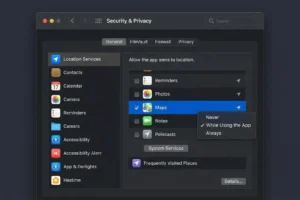
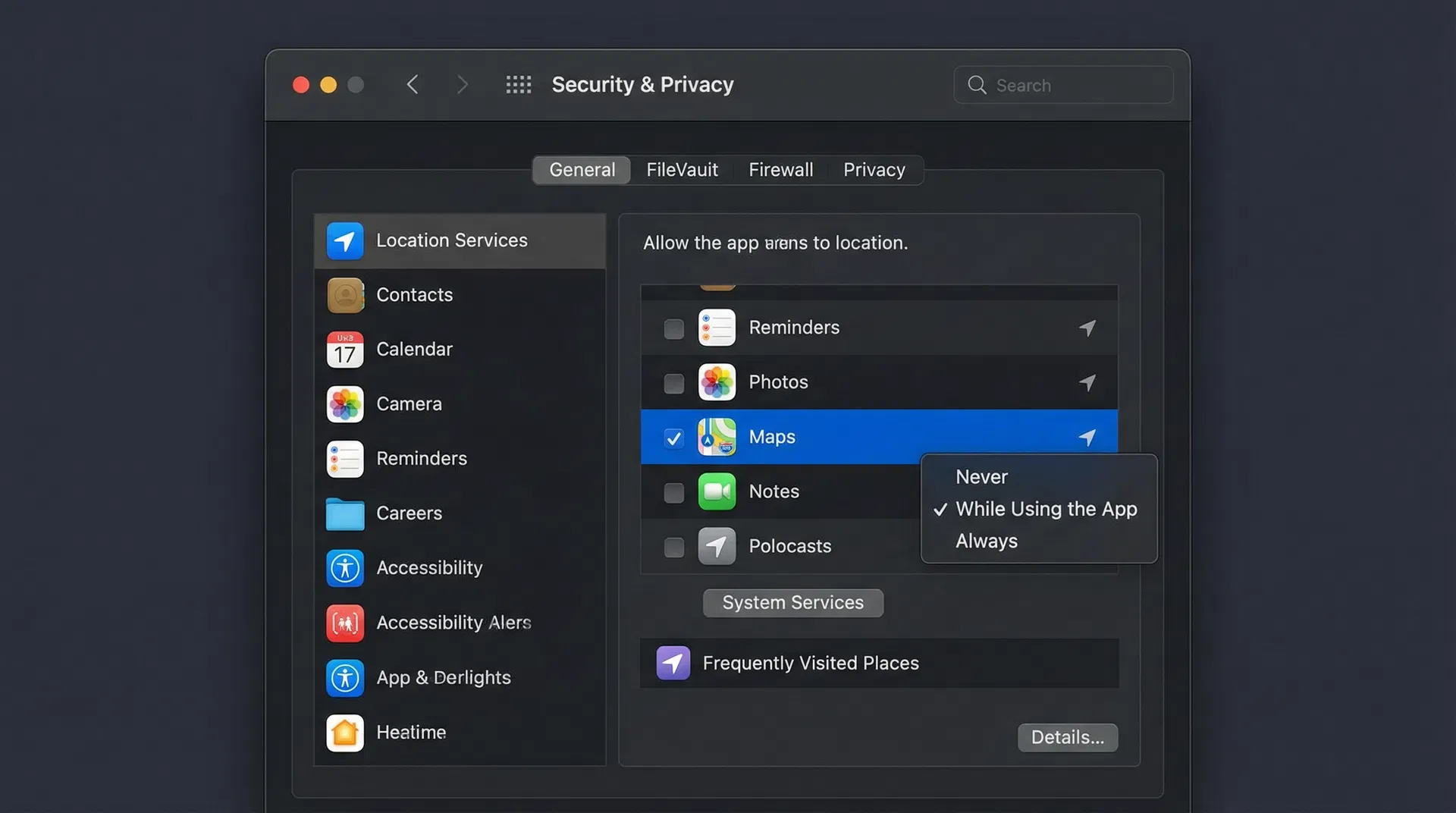
To disable Apple Maps location logging on macOS, follow these steps. First, open System Settings and navigate to Privacy & Security. Click on Location Services and ensure it’s enabled (you may want to keep this on for other apps). Scroll down and find Maps in the list of applications. Click on Maps and change the setting from “Always” or “While Using” to “Never.” This prevents Maps from accessing your location data. Additionally, go to Maps preferences (Maps > Settings in the menu bar), click on General, and uncheck “Frequently Visited Places” if available.
Disabling Location History on iOS
On iOS devices, open Settings and navigate to Privacy > Location Services. Scroll down to find Maps and tap it. Change the setting to “Never” to prevent Maps from accessing your location. Next, open the Maps app, tap your profile icon, and select “Frequently Visited Places.” Tap “Edit” and delete any locations you don’t want Maps to remember. You can also toggle off “Frequently Visited Places” entirely if the option is available in your iOS version.
Understanding the Privacy Trade-offs
Disabling Apple Maps location logging does have some consequences. You’ll lose access to personalized features like “Frequently Visited Places” and location-based reminders. Navigation may be slightly less personalized, and you won’t receive suggestions for places based on your visit history. However, these trade-offs are worthwhile for many users who prioritize privacy over convenience. Consider whether the convenience features are worth the privacy cost for your specific use case.
Alternative Privacy-Focused Mapping Applications
If you want more control over your location data, consider using alternative mapping applications. OpenStreetMap-based applications like Maps.me offer offline mapping without requiring location tracking. DuckDuckGo Maps provides privacy-focused navigation without collecting location history. Waze, while owned by Google, allows more granular privacy controls than Apple Maps. Evaluate these alternatives based on your specific needs and privacy requirements.
Monitoring Your Location Privacy
Even after disabling Apple Maps location logging, continue monitoring your privacy settings. Periodically check Location Services to ensure Maps is still set to “Never.” Review your iCloud settings to verify that location sharing with other services is disabled. Use Privacy Dashboard on iOS to see which apps have accessed your location recently. Make privacy checks a regular habit to ensure your settings haven’t been changed by iOS updates.
Conclusion
Apple Maps location logging is a significant privacy concern that many users overlook. By understanding how this logging works and taking steps to disable it, you can protect your location privacy while using Apple’s mapping services. The process is straightforward on both macOS and iOS, requiring only a few changes in your privacy settings. While you’ll lose some convenience features, the privacy benefits make it worthwhile for privacy-conscious users. Regularly review your location privacy settings to ensure your preferences remain protected.