


How to Customize Windows 11 Taskbar: A Complete Step-by-Step Guide
Introduction
The Windows 11 taskbar is a central hub for launching applications, monitoring system status, and accessing essential tools quickly. Unlike previous versions, Windows 11 introduces a fresh, centered taskbar design that aims to improve workflow and aesthetics. However, every user’s needs and preferences differ, which is why customizing the Windows 11 taskbar can significantly enhance productivity and overall user experience.
This guide provides comprehensive, easy-to-follow instructions on how to customize Windows 11 taskbar settings—covering everything from basic tweaks like pinning apps and changing alignment to advanced tweaks using registry edits and third-party tools. Whether you are a tech-savvy user or a beginner, this article will help you tailor your taskbar to fit your workflow perfectly.
Accessing Windows 11 Taskbar Settings
How to Open Taskbar Settings
Before customizing the taskbar, you need to access its settings. Windows 11 offers multiple ways to do this:
- Right-click on the Taskbar
- Simply right-click on an empty space on the taskbar.
-
From the context menu, select Taskbar settings.
-
Via the Settings App
- Press
Win + Ito open the Settings app. -
Navigate to Personalization > Taskbar.
-
Using Keyboard Shortcut
- Press
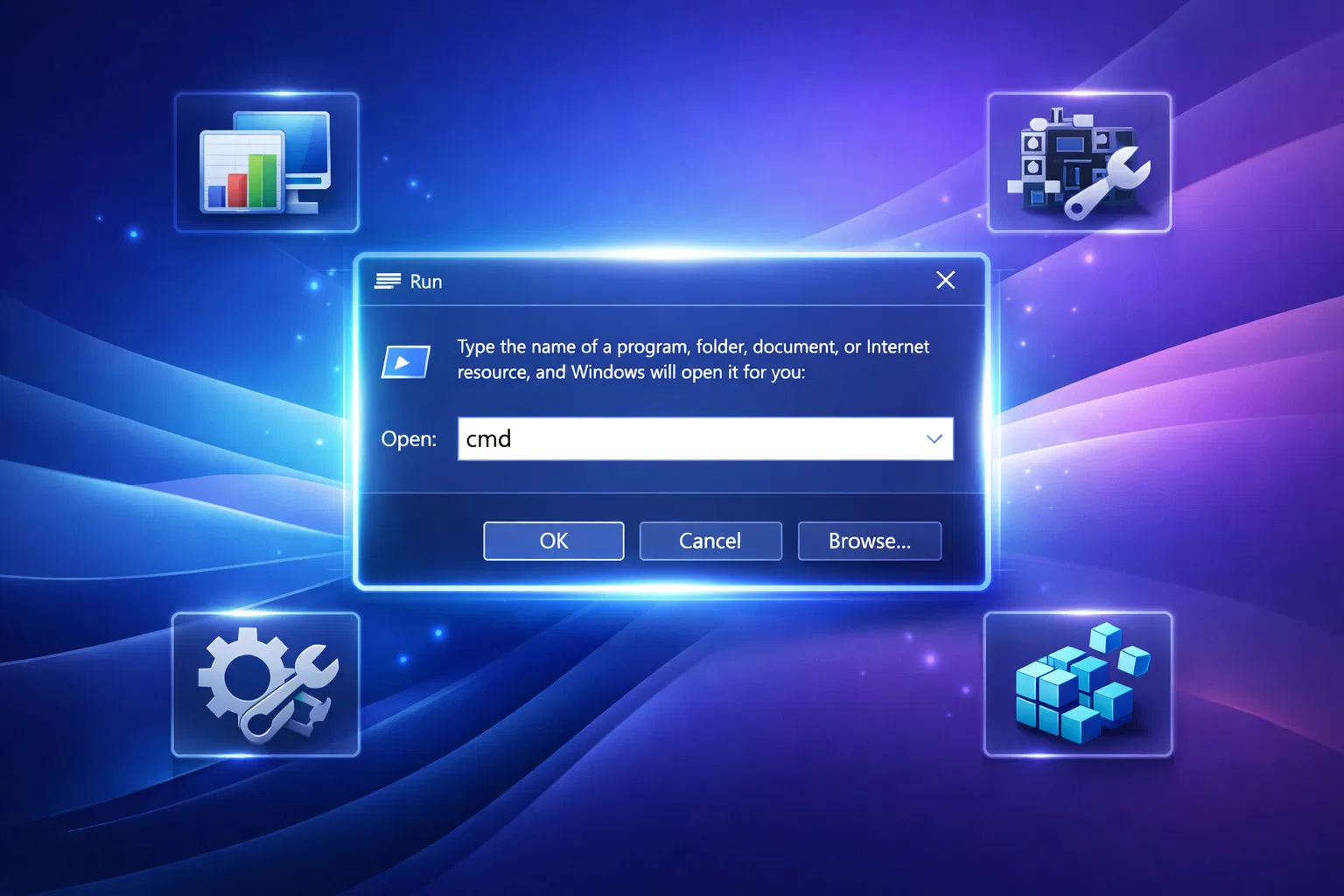
Win + Rto open the Run dialog. - Type
ms-settings:taskbarand press Enter. This opens the taskbar settings directly.
Each method leads you to the same configuration panel where you can start customizing.
Overview of Taskbar Settings Interface
The Taskbar settings interface in Windows 11 is organized into several sections:
- Taskbar Items: Toggle visibility of system icons such as Search, Task View, Widgets, and Chat.
- Taskbar Corner Icons: Manage which icons appear in the corner next to the system tray.
- Taskbar Corner Overflow: Control which icons are hidden or shown in the overflow menu.
- Taskbar Behaviors: Customize alignment, auto-hide, multi-display settings, and button grouping.
This clear segmentation helps you navigate and adjust specific aspects of the taskbar with ease.
Basic Taskbar Customization
Pinning and Unpinning Apps
Pinning your favorite apps to the taskbar allows quick access without searching or opening the Start menu.
To pin an app:
- Open the app from the Start menu or desktop.
- Right-click its icon on the taskbar.
- Select Pin to taskbar.
To unpin an app:
- Right-click the app icon on the taskbar.
- Choose Unpin from taskbar.
This simple method helps keep your most-used apps readily available.
Changing Taskbar Alignment (Center vs. Left)
Windows 11 centers taskbar icons by default, but you can align them to the left for a more traditional look.
Steps to change alignment:
- Right-click the taskbar and select Taskbar settings.
- Scroll down to Taskbar behaviors and click to expand.
- Find Taskbar alignment dropdown.
- Choose Left or Center.
This change takes effect immediately, moving the Start button and icons accordingly.
Adjusting Taskbar Size and Icon Spacing
Unlike Windows 10, Windows 11 does not provide built-in options to resize the taskbar or adjust icon spacing through the Settings app.
Workaround options:
- Registry Tweaks: Advanced users can modify registry keys to adjust taskbar size (covered in the Advanced section).
- Third-Party Tools: Some apps allow resizing and spacing adjustments (also detailed later).
By default, Windows 11 keeps the taskbar size consistent for a uniform experience.
Customizing Taskbar Icons and System Tray
Adding or Removing System Icons
You can control which system icons appear on your taskbar, such as the clock, volume, and network.
To enable or disable system icons:
- Open Settings > Personalization > Taskbar.
- Click Taskbar corner icons or Taskbar corner overflow.
- Toggle icons like Volume, Network, Power, Input Indicator, and Touch Keyboard on or off.
This customization helps reduce clutter or ensures important icons are always visible.
Managing Notification Area Icons
The notification area (system tray) shows active app icons and system alerts.
To customize notification area icons:
- Go to Settings > Personalization > Taskbar.
- Click Taskbar corner overflow.
- Use toggles to decide which app icons appear directly on the taskbar or stay hidden in the overflow menu.
This way, you can prioritize which notifications and apps are immediately accessible.
Customizing Clock, Volume, and Network Icons
While Windows 11 offers limited direct customization for these icons, you can:
- Clock: Change time format (12-hour or 24-hour) via Settings > Time & Language > Date & Time.
- Volume: Adjust audio settings by clicking the icon or using keyboard shortcuts.
- Network: Manage network connections or troubleshoot by clicking the network icon.
For deeper personalization, third-party tools or registry hacks may provide additional options.
Advanced Taskbar Customization Options
Using Registry Tweaks for Deeper Customization
Registry edits can unlock customization options not available in the standard interface but require caution.
Popular registry tweaks include:
- Resize Taskbar: Modify
UseSmallTaskbarIconsin
HKEY_CURRENT_USER\Software\Microsoft\Windows\CurrentVersion\Explorer\Advancedto enable smaller icons. - Move Taskbar to Top: Change
TaskbarAlvalue to reposition the taskbar (experimental).
Important: Always back up your registry before making changes:
- Open Registry Editor (
Win + R, typeregedit). - Select File > Export to save a backup.
Incorrect edits can cause system instability, so proceed only if comfortable.
Recommended Third-Party Tools and Their Safety
Several trusted apps enhance taskbar customization:
- StartAllBack: Restores classic taskbar features and allows resizing, repositioning, and styling.
- TaskbarX: Offers dynamic centering, transparency, and animation effects.
- ExplorerPatcher: Brings back Windows 10 taskbar behaviors and customization.
Safety tips:
- Download only from official or reputable sources.
- Check user reviews and community feedback.
- Keep antivirus software active.
- Avoid tools requiring excessive permissions.
These tools can greatly extend customization but use them responsibly.
Adding Widgets and Toolbars
Windows 11 includes built-in widgets accessible from the taskbar:
- Click the Widgets icon to open news, weather, calendar, and other personalized content.
Adding toolbars:
Unlike Windows 10, Windows 11 does not natively support adding custom toolbars directly on the taskbar. However, third-party tools like 7+ Taskbar Tweaker or ExplorerPatcher may enable this functionality.
Taskbar Behavior Settings
Enabling Auto-Hide
Auto-hide keeps the taskbar hidden until you move the mouse pointer to its location, maximizing screen space.
To enable auto-hide:
- Open Taskbar settings.
- Expand Taskbar behaviors.
- Check the box for Automatically hide the taskbar.
This is useful for users who prefer a minimalist desktop or work on smaller screens.
Taskbar on Multiple Displays
If you use multiple monitors, you can configure how the taskbar behaves on each display.
To customize multi-display taskbars:
- Go to Taskbar settings > Taskbar behaviors.
- Enable Show my taskbar on all displays.
-
Choose whether to show taskbar buttons on:
-
All taskbars
- Main taskbar and taskbar where window is open
- Taskbar where window is open
This flexibility helps maintain workflow across multiple screens.
Combining or Grouping Taskbar Buttons
Windows 11 groups open windows of the same app by default but offers limited options to change this behavior.
To adjust grouping:
- Currently, Windows 11 does not provide direct settings for ungrouping or combining buttons like Windows 10.
- Third-party tools like StartAllBack or ExplorerPatcher can restore classic grouping options.
Grouping helps keep the taskbar organized, especially when many windows are open.
Accessibility and Performance Considerations
Customizing Taskbar for Accessibility
Improving accessibility through taskbar customization includes:
- Increasing Icon Size: Use registry tweaks or third-party tools to enlarge icons for better visibility.
- Changing Contrast: Enable high contrast themes via Settings > Accessibility > Contrast themes.
- Keyboard Navigation: Use
Win + Tto cycle through taskbar icons andEnterto launch.
These features help users with visual impairments or mobility challenges interact more easily with the taskbar.
Impact of Customization on System Performance
Most basic taskbar customizations have negligible impact on system performance. However:
- Excessive third-party tools or poorly optimized apps may slow down Explorer or cause instability.
- Registry edits done incorrectly can cause crashes or slowdowns.
Best practices:
- Use minimal and trusted customization tools.
- Always back up system and registry before changes.
- Monitor system responsiveness after applying tweaks.
Staying cautious ensures a smooth and stable Windows experience.
Troubleshooting Common Taskbar Issues
Taskbar Not Responding or Freezing
If your taskbar becomes unresponsive:
- Press
Ctrl + Shift + Escto open Task Manager. - Find Windows Explorer in the Processes tab.
- Right-click and select Restart.
This refreshes the taskbar and often resolves freezing issues.
If problems persist, consider restarting your PC or checking for system updates.
Resetting Taskbar to Default Settings
To revert taskbar customizations:
- Using Settings: Manually toggle off custom options in Taskbar settings.
- Using Registry: Delete or reset related registry keys (advanced users).
- System Restore: Use a restore point if available.
Alternatively, running the following command in PowerShell (admin) can reset taskbar pinned items:
Get-AppxPackage -AllUsers| Foreach {Add-AppxPackage -DisableDevelopmentMode -Register "$($_.InstallLocation)\AppXManifest.xml"}
Always back up data before resetting.
Fixing Missing Icons
If system icons like volume or network disappear:
- Check Taskbar settings > Taskbar corner icons to ensure they are enabled.
- Restart Windows Explorer (see above).
-
Run System File Checker:
-
Open Command Prompt as admin.
- Run
sfc /scannowto repair system files.
These steps usually restore missing icons.
Windows 10 vs. Windows 11 Taskbar Customization
Key Differences
- Alignment: Windows 11 centers taskbar icons by default; Windows 10 aligns left.
- Size Adjustment: Windows 10 allows resizing via settings; Windows 11 requires registry tweaks or third-party tools.
- Grouping Options: Windows 10 offers more grouping controls; Windows 11 limits this natively.
- Widgets: Windows 11 integrates widgets directly; Windows 10 does not.
- Taskbar Position: Windows 10 supports top, bottom, left, right placement; Windows 11 only supports bottom (with registry hacks).
Tips for Users Transitioning from Windows 10
- Familiarize yourself with the new centered taskbar and try switching alignment to left if preferred.
- Use third-party tools like StartAllBack to restore Windows 10-like behavior.
- Explore new widgets and multitasking features to enhance productivity.
- Be patient with the reduced native customization options; advanced tweaks can help bridge the gap.
Conclusion
Customizing the Windows 11 taskbar allows you to create a workspace that suits your workflow and preferences. From basic pinning and alignment changes to advanced registry tweaks and trusted third-party tools, there are many ways to tailor the taskbar’s appearance and behavior.
Remember to proceed cautiously with advanced modifications, always back up your system, and keep performance and accessibility in mind. Experimenting safely with these options can lead to a more efficient and enjoyable Windows 11 experience.
For further assistance, consider visiting official Microsoft support resources or community forums, where you can find updates and additional customization tips.
By following this comprehensive guide on how to customize Windows 11 taskbar, you are well-equipped to make the taskbar work best for you.